Downloading data
Once login, metadata retrieval, and mapping are complete, the extractor can begin data download. Instead of relying on a single large DHIS2 request, the extractor is designed to handle extraction in smaller and more manageable batches. This approach lowers the risk of timeouts for large download requests, thus reducing the chances of incomplete downloads.
Large extractions still need planning:
- Even with caching and chunked processing, very large downloads may take time depending on server performance, user permissions, internet stability, and the size of the requested organization unit and period ranges.
Download steps
Complete and save your mapping
Go to the Downloads Manager and click + New Download Task
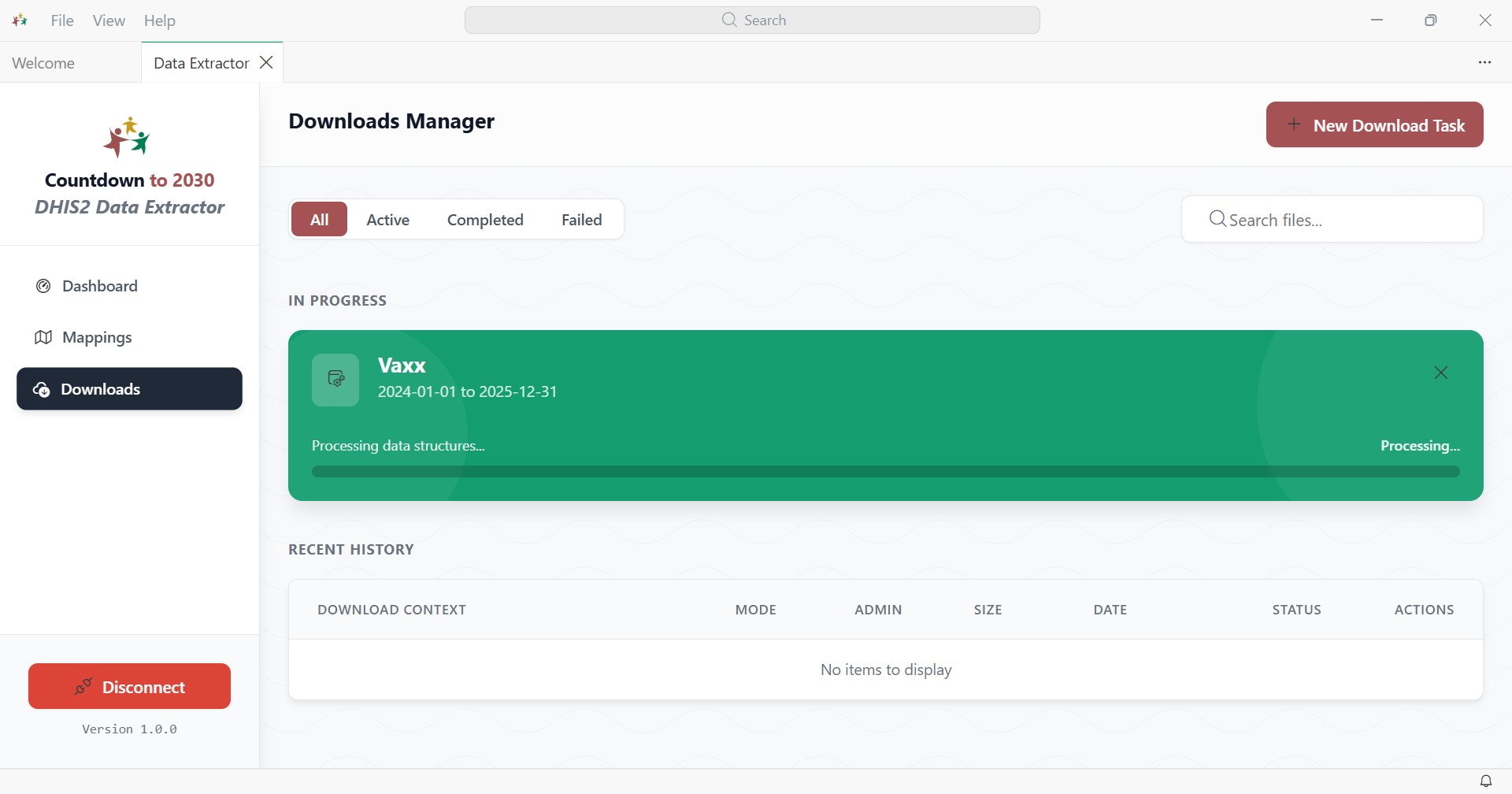 Downloads Manager with the New Download Task button
Configure the download parameters
Select the name of the mapping (in case you have multiple mappings), the period (start and end dates), and the admin level, then click Start Download.
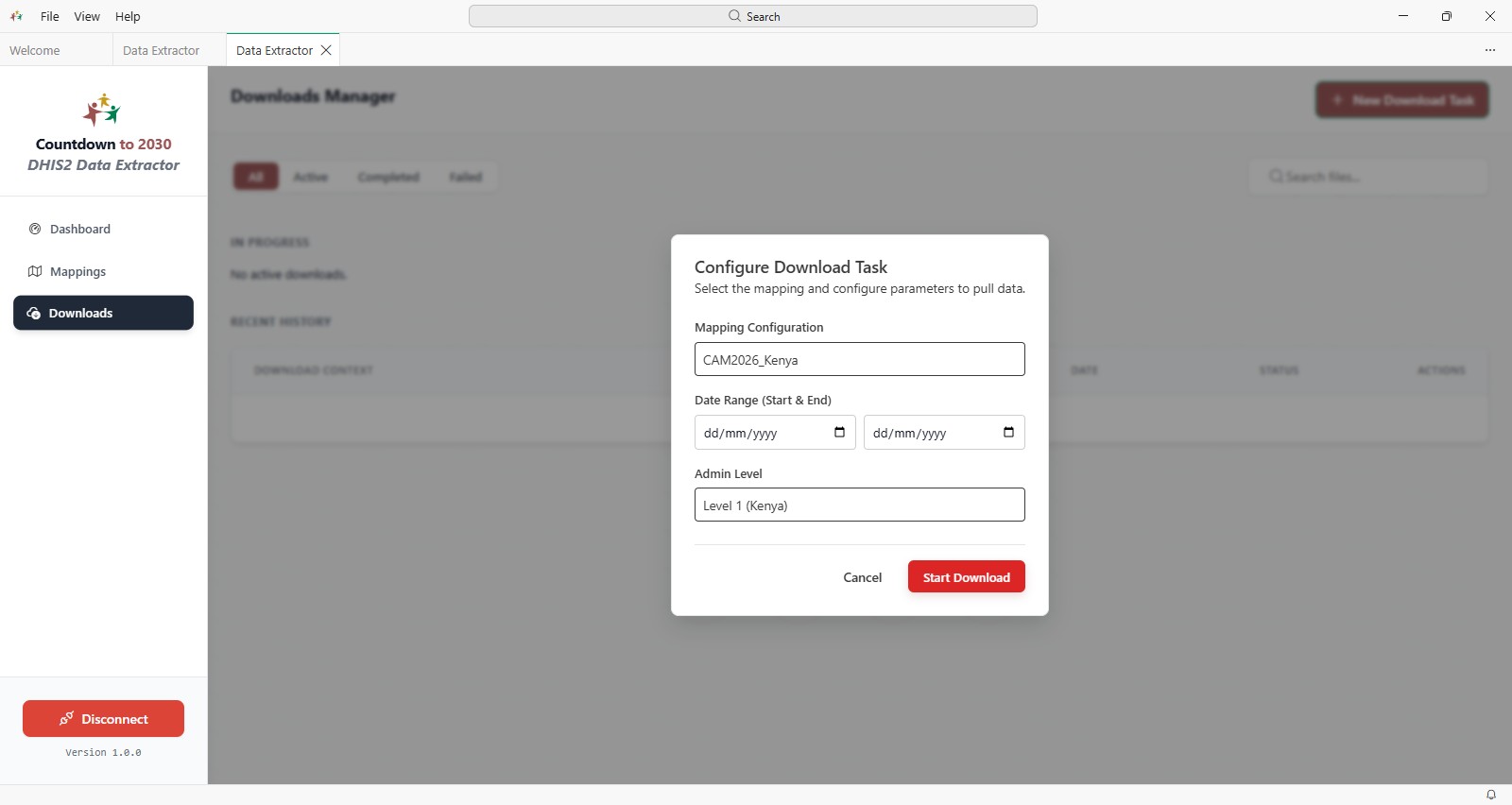 Configure Download Task dialog
Countdown download configuration:
- Date Range: use the last five years (for example, January 1st 2020 to December 31st 2025).
- Admin Level: use Level 3.
Caching is not only useful for metadata. It also helps the extractor preserve progress and reduce unnecessary repeated work where extraction tasks are interrupted or revisited.
This improves reliability in practical field conditions, especially when:
- internet connectivity is unstable,
- DHIS2 response times vary,
- analysts need to rerun the same extract after refining mappings,
- teams want a reproducible process with less manual repetition.
Tip: If you are testing mappings, validate the metadata and structure first using a smaller extraction range before launching a full national, multi-year download.