Navigating the CD2030 DataSuite interface
On this page you will find instructions on the various screens and views, and tips for navigating CD2030 DataSuite as a first-time user.
After downloading and installing CD2030 DataSuite, you will see the following screen:
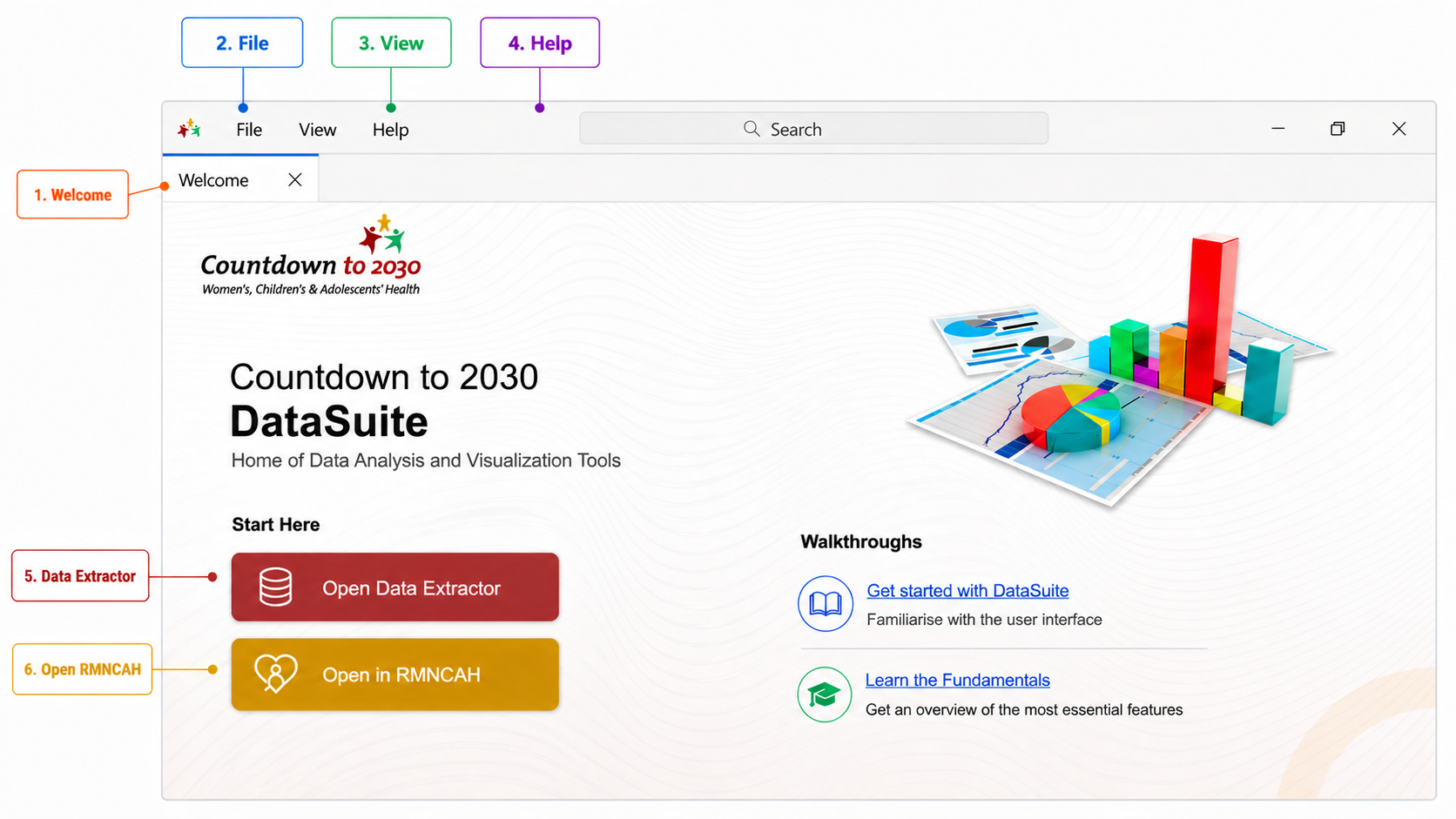 DataSuite welcome page with numbered interface elements
It has the following elements:
Welcome page
This is the default landing screen when you open DataSuite. It provides:
- Quick access to core applications
- Entry points for new users and links to guided walkthroughs
File
The File menu provides access to application-level actions and navigation.
Key functions include:
- Viewing all available apps within DataSuite
- Opening or switching between tools
- Managing open editors (closing tabs)
- Exiting the application
View
The View menu controls how the application is displayed and organized.
You can:
- Change the application theme (e.g., light/dark mode)
- Zoom in or out of the interface
- Adjust layout and panel organization
- Switch language settings
Help
The Help menu provides access to support resources and system information.
Key features include:
- Accessing DataSuite documentation
- Checking the current app version and looking for updates
- Viewing developer/technical information
Open Data Extractor
Launches the Data Extractor, which is used to connect to DHIS2, map indicators, and download routine health facility data.
Open in RMNCAH
Launches the RMNCAH App, which is used for:
- Analysis of maternal, newborn, child, and adolescent health indicators
- Generating analytical outputs and reports