FAQs
This page is under development. Frequently asked questions about DataSuite are grouped by topic below.
Downloading and installation
Q. What are the system requirements for DataSuite?
- Check out the list of system requirements.
Q. How do I know which version of DataSuite I am running?
- On the menu bar, click Help and select About.
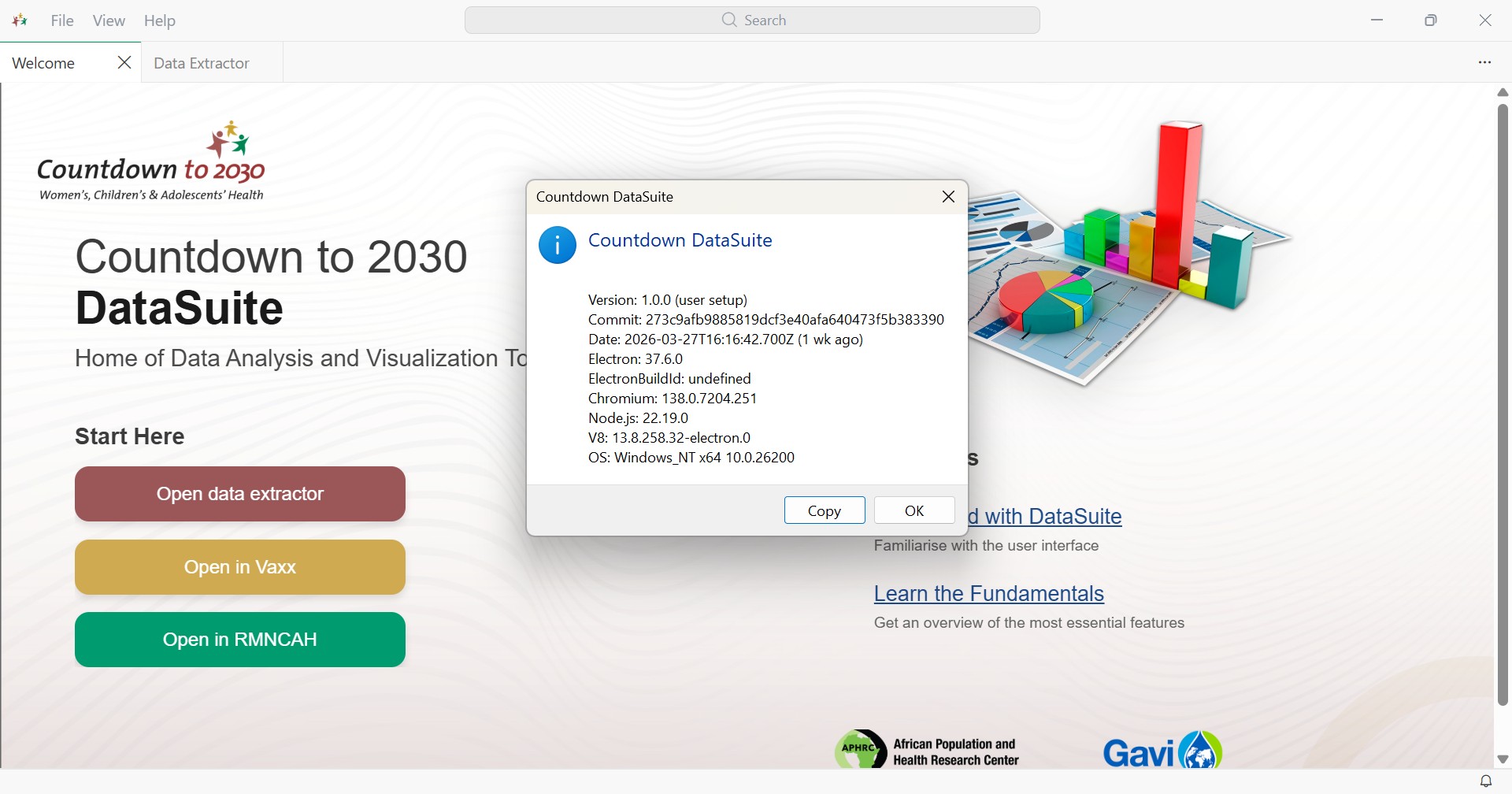 DataSuite About dialog showing the version number
Q. How do I manually check for DataSuite version updates?
- On the menu bar, click Help and select Check for Updates.
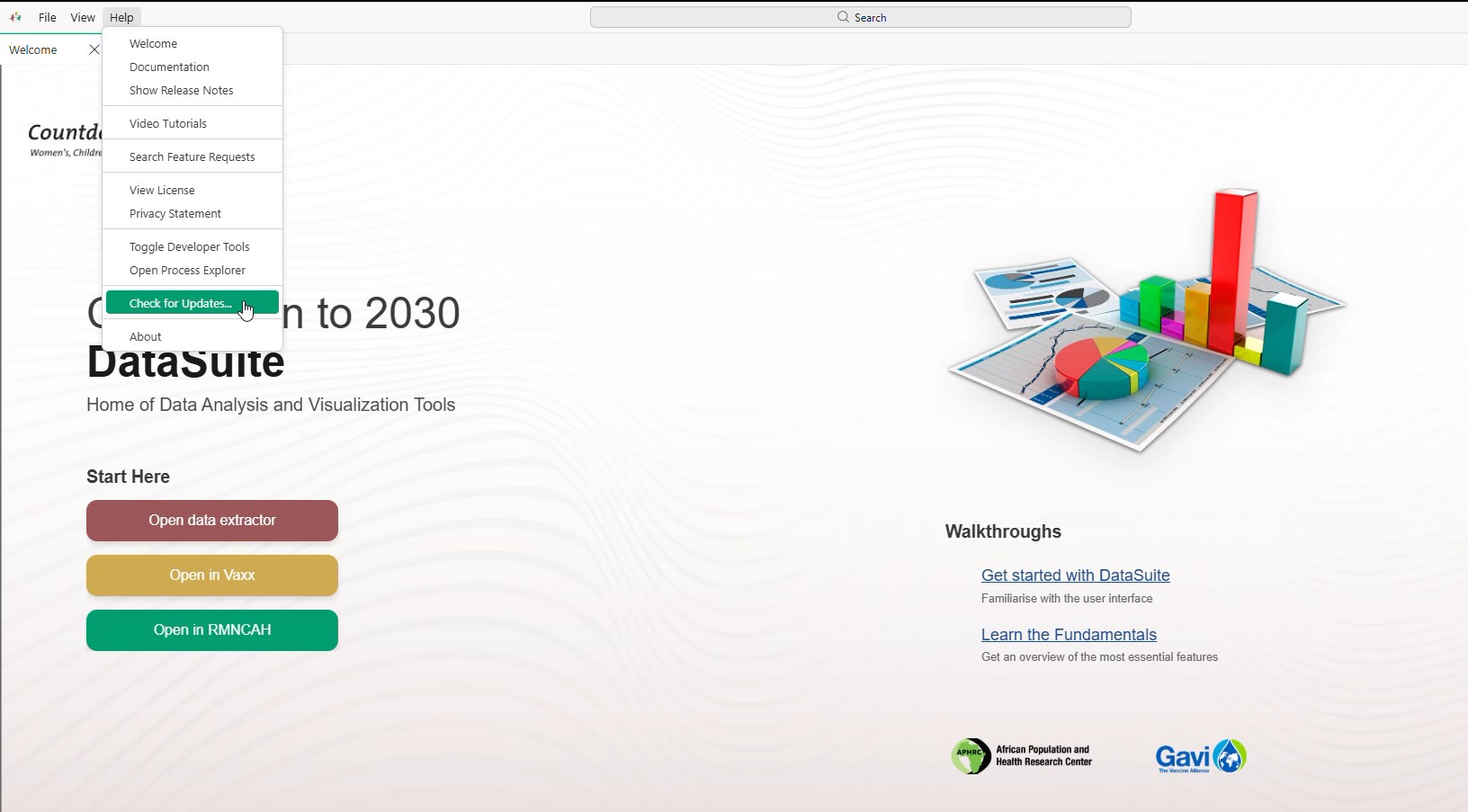 Help menu with the Check for Updates option highlighted
Q. How can I do a “clean” uninstall of DataSuite?
- If you want to remove all user data after uninstalling DataSuite, you can delete the user data folders
DataSuiteand.datasuite. - This returns you to the state before you installed DataSuite. This approach can also be used to reset all settings if you do not want to uninstall DataSuite.
- The folder locations vary depending on your platform:
- Windows: delete
%APPDATA%\DataSuiteand%USERPROFILE%\.datasuite.
- Windows: delete
DHIS2 Data Extractor
Q. Login fails
- Verify the DHIS2 URL.
- Check your credentials.
Q. Export errors
- Check file permissions.
- Review the mapping configuration.
Analysis setup
Q. Loading data: Excel or RDS file?
- First-time loading.
- Subsequent loading.
Q. I cannot locate the generated cache file
- Ensure that you have properly set up your working folder. Then look for a file that has a name in the format
Countryname_yyyymmddhhms.rds. Example:Somalia_202605241128.rds.
Q. Where do I get the national/subnational coverage parameters?
- TBC.
Q. Where are the other datasets being used in the coverage analysis?
- TBC.
Q. No outputs are generated after uploading data
- Was the data adjusted?
- Are all analysis parameters set up correctly?
Report generation
Q. What are the expected report types?
- Synthesis reports, one pagers, subnational reports.
Q. In which sections can I download the reports?
- Download sections.