
FAQs
Frequently asked questions about DataSuite, grouped by topic: installing and updating, the Data Extractor, loading data, the analysis and reports.
Short answers to the questions users ask most, each with the page that covers it.
Installing and updating
Q. What do I need to run DataSuite?
Windows 10 or 11 (64-bit), or a recent 64-bit Linux, and R 4.1 or newer: DataSuite runs the analyses in R and does not include it. Python 3.10 or newer and a licensed Stata 17 or newer are needed only for notebooks in those languages. See Requirements and, for Linux, Linux.
Q. DataSuite says it needs R. What do I do?
The message "DataSuite needs R 4.1.0 or newer to run its apps and analyses, and none was found" means R is not installed, or DataSuite cannot find it. Choose Download R and install it, or Choose R Folder... if R is already installed somewhere else, then Check Again. If R is older than 4.1, install a newer one.
Q. Should I use the User or the System installer?
The User installer, unless several people use the same computer: it needs no administrator rights and updates itself in the background. The System installer installs for every user and needs administrator rights to install and update. See Installer options.
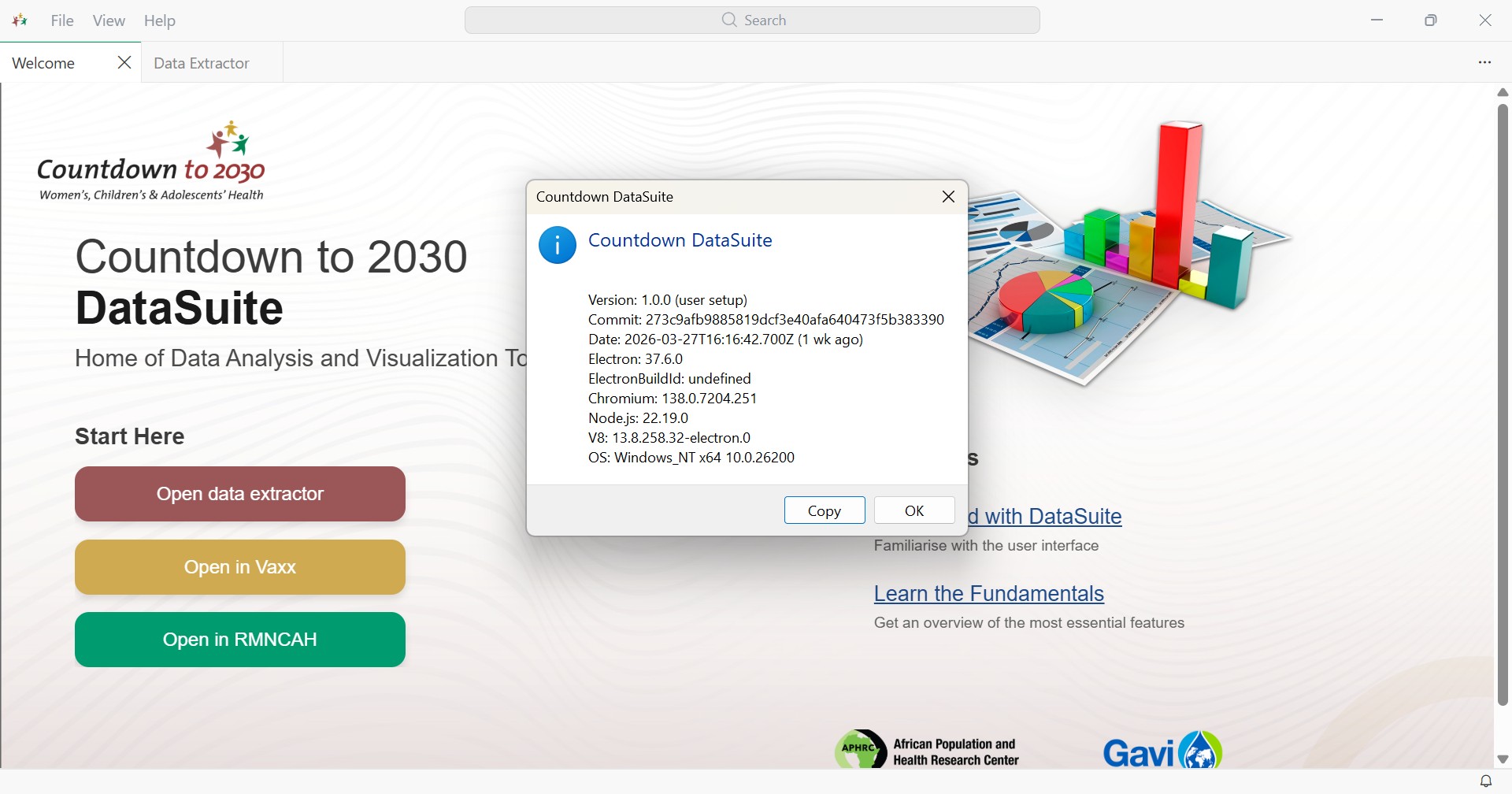
Q. Which version of DataSuite am I running?
Click Help and choose About.
Q. How do I update DataSuite?
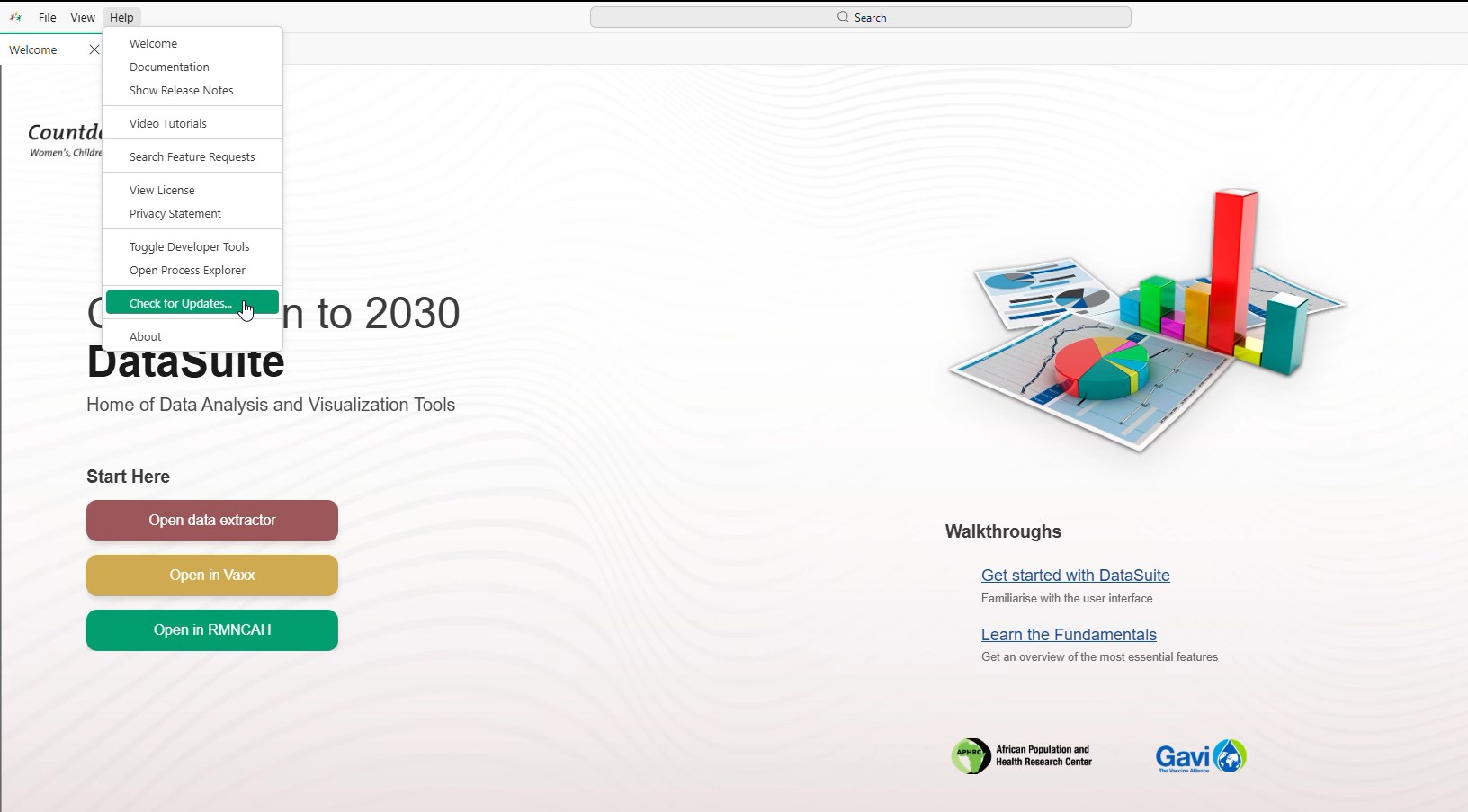
DataSuite tells you when a new version is out, when you open it. To check yourself, click Help and choose Check for Updates. The .zip (portable) version does not update itself: download the new version and copy your data folder into it (see Portable mode). What changed: Release notes.
Q. How do I remove DataSuite completely, or reset its settings?
Uninstall it, then delete its two user data folders, %APPDATA%\DataSuite and %USERPROFILE%\.datasuite. Deleting them without uninstalling resets DataSuite to its first start: settings, DHIS2 sign-ins, mappings and the download history go. Your data files (workbooks, saved datasets, downloads) are not in these folders and are kept. See Clean uninstall.
Data Extractor
Q. I cannot sign in to DHIS2.
The message says why:
- The server's address starts with https:// -- type the full address of the DHIS2 server, for example
https://dhis2.example.org, not the address of a page inside it. - Invalid username or password. -- check them by signing in to DHIS2 in your browser. You can sign in with a personal access token instead (DHIS2 2.39 or later: Profile > Edit profile > Personal access tokens).
- Unable to reach the DHIS2 server. -- check your internet connection and the address.
See DHIS2 login.
Q. I signed in, but a data element, an indicator or an area is missing.
The extractor sees only what your DHIS2 user may see: access is set in DHIS2, not in DataSuite. Ask your DHIS2 administrator for access. If the item was added to DHIS2 recently, refresh the extractor's copy of the metadata (Settings > Metadata > Refresh now).
Q. A download fails or is very slow.
A failed download says why in Downloads > History; press Retry to run it again. Large downloads (many years, a low level) take time. If the server is slow or shared, lower Downloads at the same time and Values per request in Settings > Downloads, or download fewer years at a time. See Downloading data.
Q. Where is the file I downloaded?
In Documents\DataSuite\Downloads, unless you chose another folder in Settings > Files > Save to. In Downloads > History, open a finished download as Excel or JSON, or choose Show in folder. A download made with a Countdown mapping can also open straight in the RMNCAH or Vaccination app: its workbook is then written to Documents\Countdown data\<server>, and the app saves its dataset next to it.
Loading data
Q. Do I load the Excel workbook or the .rds file?
The Excel workbook from the Data Extractor the first time: the app checks it and walks you through the setup (survey values, survey files, shapefile). When you press Finish Loading Data, the app saves the dataset as an .rds file. Later, open the same workbook again, or the .rds: either way the saved dataset opens, with your choices. See Accepted files.
Q. Where is the saved dataset, and what is it called?
In the same folder as the workbook you opened, named after it: mydata.xlsx is saved as mydata_rmncah.rds by the RMNCAH app and mydata_vaccine.rds by the Vaxx app. Keep the workbook and its .rds together and do not rename the .rds. See The saved .rds file.
Q. I corrected the workbook, but the app still shows the old data.
When a saved dataset exists next to the workbook, the app opens it instead of reading the workbook again. Delete (or move) the .rds, then open the workbook.
Q. The upload fails.
- Upload failed: Unsupported file format. -- the app reads
.xlsx,.xls,.dtaand.rdsfiles only. - This dataset was built for the 'vaccine' indicator group, but this app is for 'rmncah' (or the reverse) -- the
.rdswas saved by the other app. Open it in that app, or load the workbook. - Some checks found issues that need fixing before you can continue -- a blocking check failed. Correct the workbook and load it again.
All the messages and what to do: Troubleshooting.
Q. Where do the survey values on the National Rates step come from?
From the country's survey data built into the app, or from the national survey file if you upload one. Check them against the latest survey report (DHS, MICS) and correct them if you have more recent, validated values. What each value means: National survey parameters.
Q. Which other data does the analysis use?
Global estimates built into the app for the country: UN population projections, WUENIC immunization estimates, UN mortality estimates, family planning (FPET) estimates and survey results. You can replace the UN, WUENIC and UN mortality estimates with your own .dta files on the Upload Data step. See Global estimates.
Analysis
Q. The analysis pages are greyed out, or show nothing.
Pages unlock in order. Finish loading the dataset first ("Load and finish a dataset first to unlock this page"), then run the adjustment on the Data Adjustment page: the denominator, analysis and report pages open after it, even with every adjustment factor at 0. The coverage charts also need the denominators chosen on Denominator Selection. See Data preparation.
Q. I changed the adjustment factors or removed a year, and nothing changed.
The analysis pages keep the last adjustment until you run it again on the Data Adjustment page. Then check the denominators again. See Data preparation.
Q. Why does the Vaxx app have no mortality, service utilization or health system pages?
A vaccine analysis covers immunization only. What the two analyses share and where they differ: RMNCAH and vaccine analyses.
Reports
Q. Which reports can I make?
The standard Countdown reports: one per analysis (data quality, data adjustment, denominators and inequality; in the RMNCAH app also national coverage, mortality, curative services, the health system and the public/private share), a synthesis chartbook and a sub-national one-pager. You can also start your own document or slide deck. Each opens as an editable copy. See Standard reports.
Q. Where do I make and download them?
On the Reports page (under Output), which opens once the data are adjusted. A Generate Report button on an analysis page starts its standard report. Choose Download: a document as Word or PDF, a slide deck as PowerPoint or PDF. See Reports.
Q. The PDF cannot be made.
A document's PDF is made with Microsoft Word or LibreOffice, a slide deck's with PowerPoint or LibreOffice: install one of them, or download the Word or PowerPoint file. See Formats and downloads.
Q. How do I share my reports with a colleague?
Reports are saved inside the dataset (.rds): share that file. The colleague opens it in the same app and finds the reports under Your reports.