
Load Data
How to open the RMNCAH or Vaxx app on a data file and take it through the Load Data wizard, step by step, to a dataset ready for analysis.
Load Data is the first page of both apps. Its wizard reads your data file, checks it, asks for the national survey values and saves the dataset that every other page uses. RMNCAH Vaxx
Before you start: have the workbook from the Data Extractor, or a dataset the app saved earlier. What the files must contain: Analysis setup.
Open the app
On the DataSuite start page choose the RMNCAH or Vaxx app (see First steps). DataSuite asks for a data file and opens the app on it. The app reads the file at once: Load Data shows a green Upload successful banner with the file name.
Accepted files
| File | What happens |
|---|---|
.xlsx, .xls | A workbook with the required sheets (Analysis setup > HMIS data). The wizard starts at Upload Data. |
.dta | A Stata file with the data already merged. The wizard starts at Upload Data. |
.rds | A dataset saved by the appRDS file The copy of a loaded dataset that the app saves next to the source file (.rds, an R data file). It opens much faster than the Excel workbook, without the checks; delete it to reload a changed workbook.. It was checked when it was first loaded, so the app shows the Ready for analysis summary instead of the wizard. |
Any other file type stops with Upload failed: Unsupported file format.
When you finish the wizard, the app saves a copy of the dataset next to your file: the file name with _rmncah.rds added (Vaxx: _vaccine.rds). The next time you open the same Excel or Stata file, the app opens that saved copy instead, with all your settings. To load a changed workbook from scratch, delete the saved copy first.
Ready for analysis
When the dataset is already loaded (a saved .rds, or after you finish the wizard), Load Data shows a summary instead of the wizard.
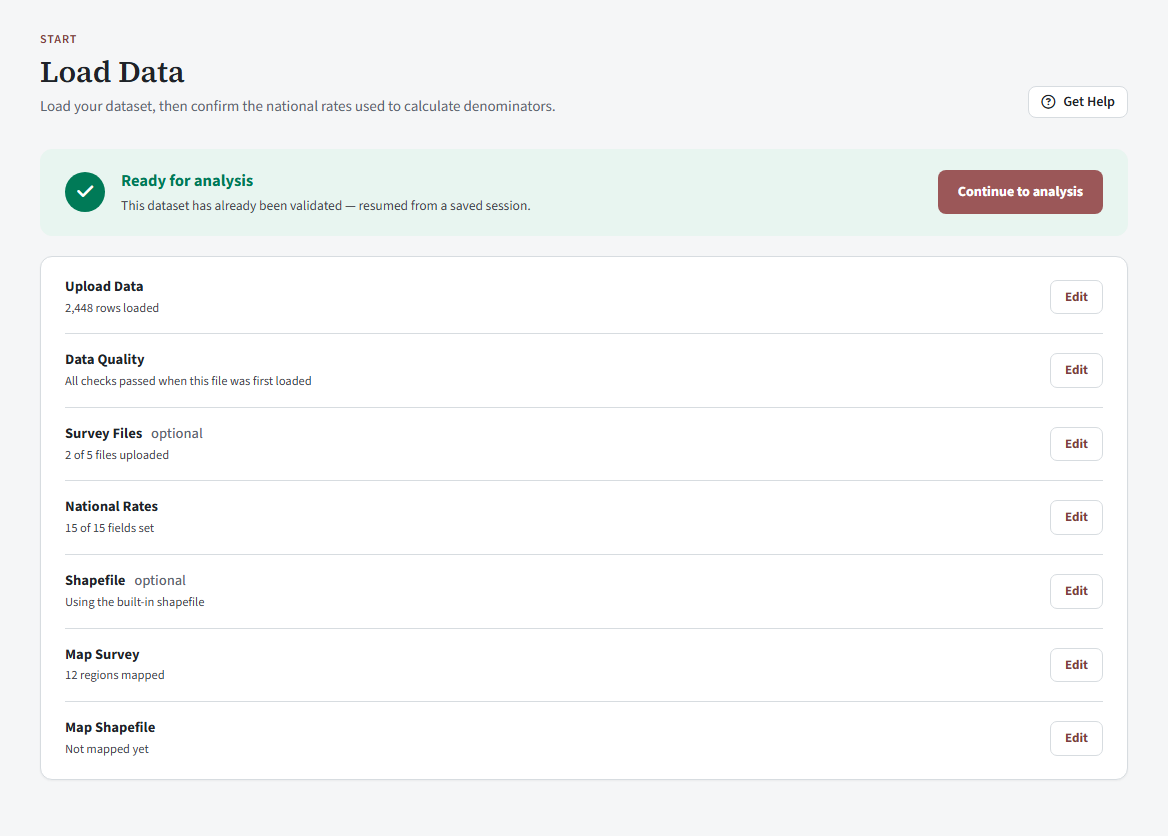
- The banner says whether the dataset was resumed from a saved session or has just been saved.
- Each row is one wizard step with what it holds, for example 2,448 rows loaded or 15 of 15 fields set.
- Edit reopens that step. ← Back to overview returns to the summary.
- Continue to analysis opens Reporting Rate.
The Load Data wizard
A new Excel or Stata file goes through seven steps. The step rail at the top shows them: a tick marks a finished step, a padlock a step you cannot open yet. The button at the bottom right moves on: Continue to … after a step you completed, Skip to … past an optional step you left as it is. ← Back returns to the step before.
flowchart TD
  U["Upload Data"] --> Q["Data Quality"]
  Q -- "blocked" --> X["Fix the workbook"]:::stop
  X -.-> U
  Q -- "passed" --> S["Survey Files"]:::optional
  S --> N["National Rates"] --> H["Shapefile"]:::optional
  H --> M["Map Survey, Map Shapefile"] --> F["Finish"] --> R["Ready for analysis"]:::done
  D["Saved dataset (.rds)"] --> R
Upload Data
The Dataset card shows the file that was read. Download Master Dataset saves the merged data as a Stata file (
master_dataset.dta).Additional reference data (optional) replaces the app's built-in reference data for the country with your own
.dtafiles: Upload UN Estimates data, Upload WUENIC estimates and Upload UN Mortality estimates. Leave them empty to use the built-in UN estimatesUN estimates The United Nations population projections for a country (total population, births and target groups by year), built into the app; used to assess the population projections of the facility data and as a denominator option., WUENICWUENIC WHO and UNICEF estimates of national immunization coverage, produced each year with countries from all data sources; compared with the coverage estimated from facility data. and UN mortality estimatesUN mortality estimates The UN inter-agency estimates of maternal mortality, stillbirth and neonatal mortality for each country, with a lower bound, best estimate and upper bound (for stillbirths, 90% uncertainty intervals). The RMNCAH app has them built in, or you upload your own..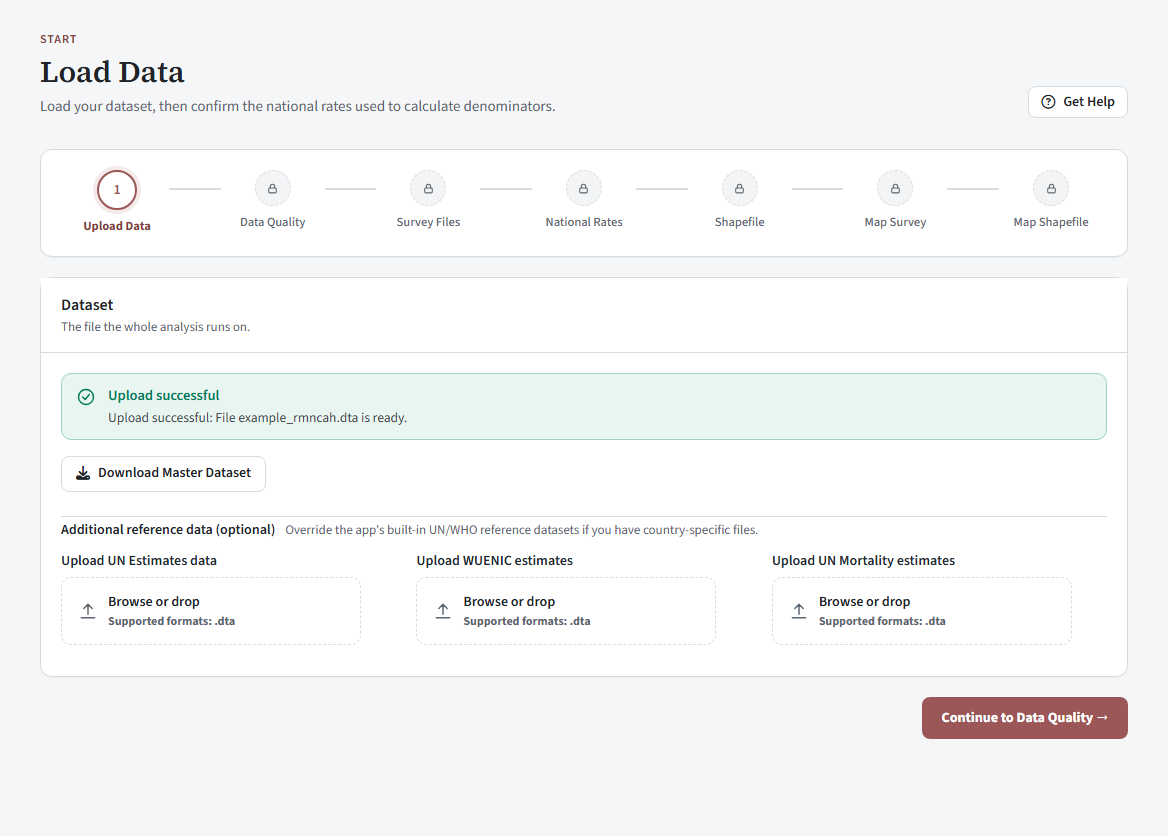
Press Continue to Data Quality →.
Data Quality
The checksData checks Per district, whether it is missing from, and how often it occurs in, each sheet. run by themselves when the file is read. A banner gives the result: All checks passed — no blocking issues found, or Some checks found issues that need fixing before you can continue.
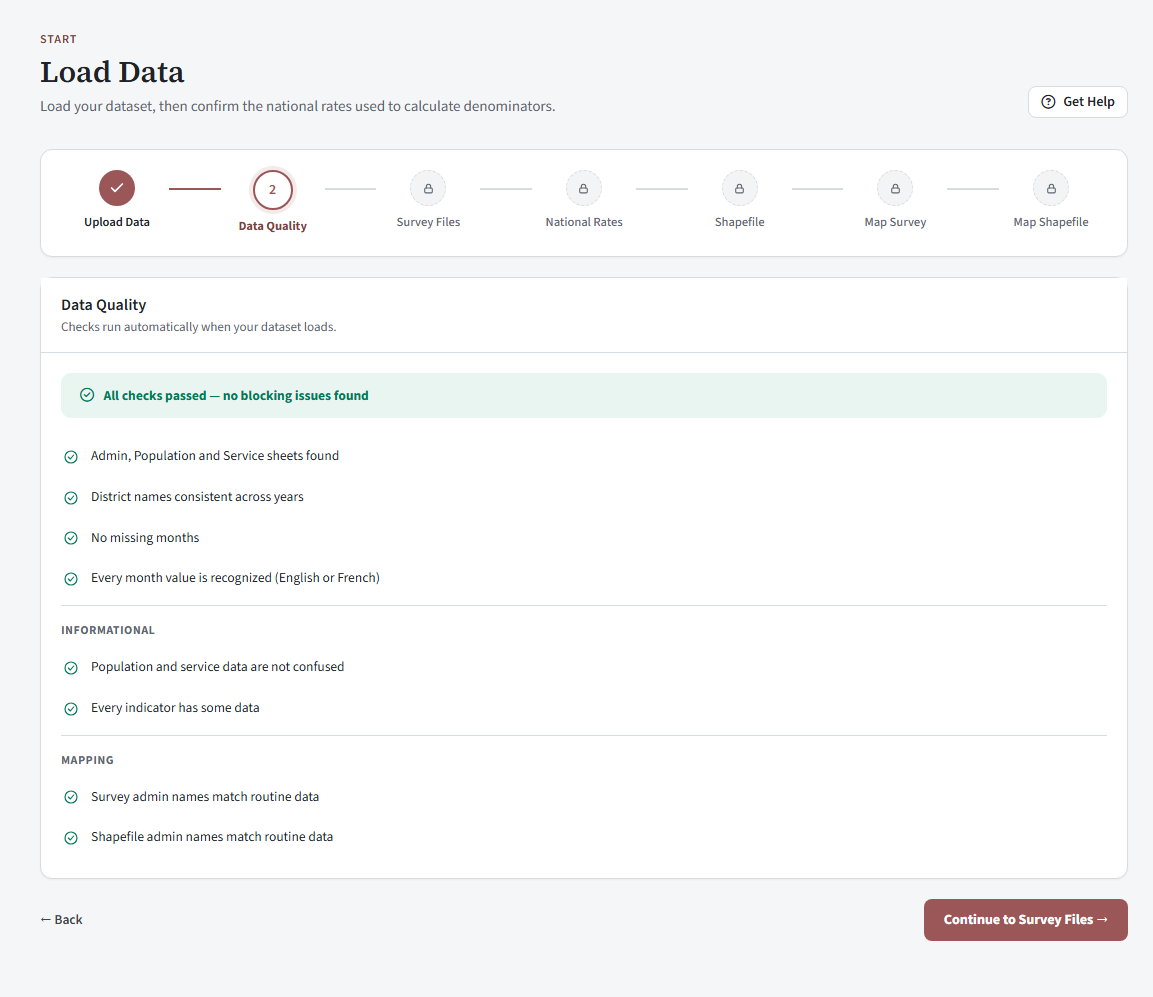
The list has three parts:
- The first rows are blocking checksBlocking check A check on the uploaded workbook (sheets, key columns, country, districts, months) that must pass before the analysis can continue; informational checks only warn., for example Admin, Population and Service sheets found or No missing months. A failed one shows a warning sign and says what is wrong. You cannot continue until every blocking check passes.
- Informational checks only warn, for example Every indicator has some data.
- Mapping checks say whether the region names of your survey files and map match your data. You fix them in the mapping steps.
To fix a blocking check, correct the workbook and load it again. What each check tests: Analysis setup > Checks on the uploaded data.
Survey Files (optional)
The Survey data folder card has one box per survey file (
.dta): National data, Regional data, Area data, Maternal education data and Wealth index quintile data. Upload the ones you have; leave the others empty.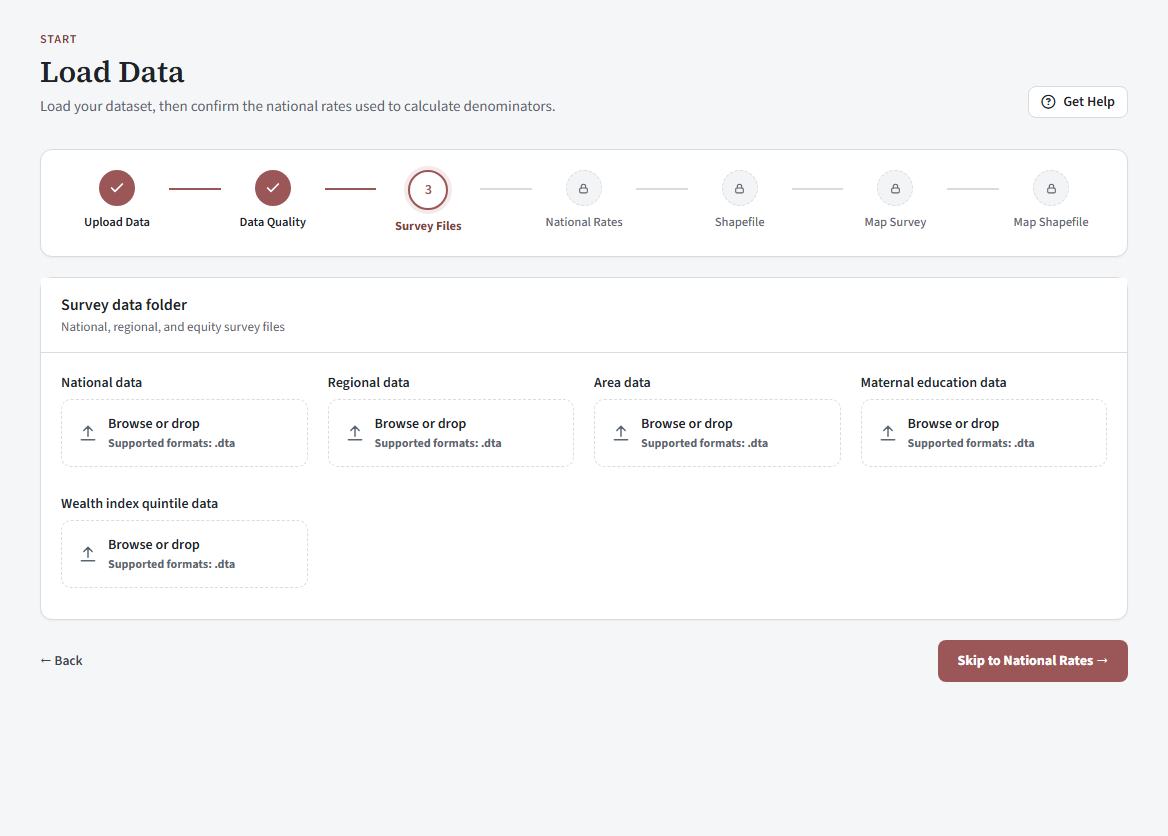
What each file is used for, and what happens without it: Analysis setup > Survey files and shapefile.
National Rates
The National rates for denominator calculation card holds the survey values the app needs to build the denominators. Every field is required. An empty field says Not set. Needed for denominators., and the bottom of the page shows Required fields remaining next to a disabled Continue button.
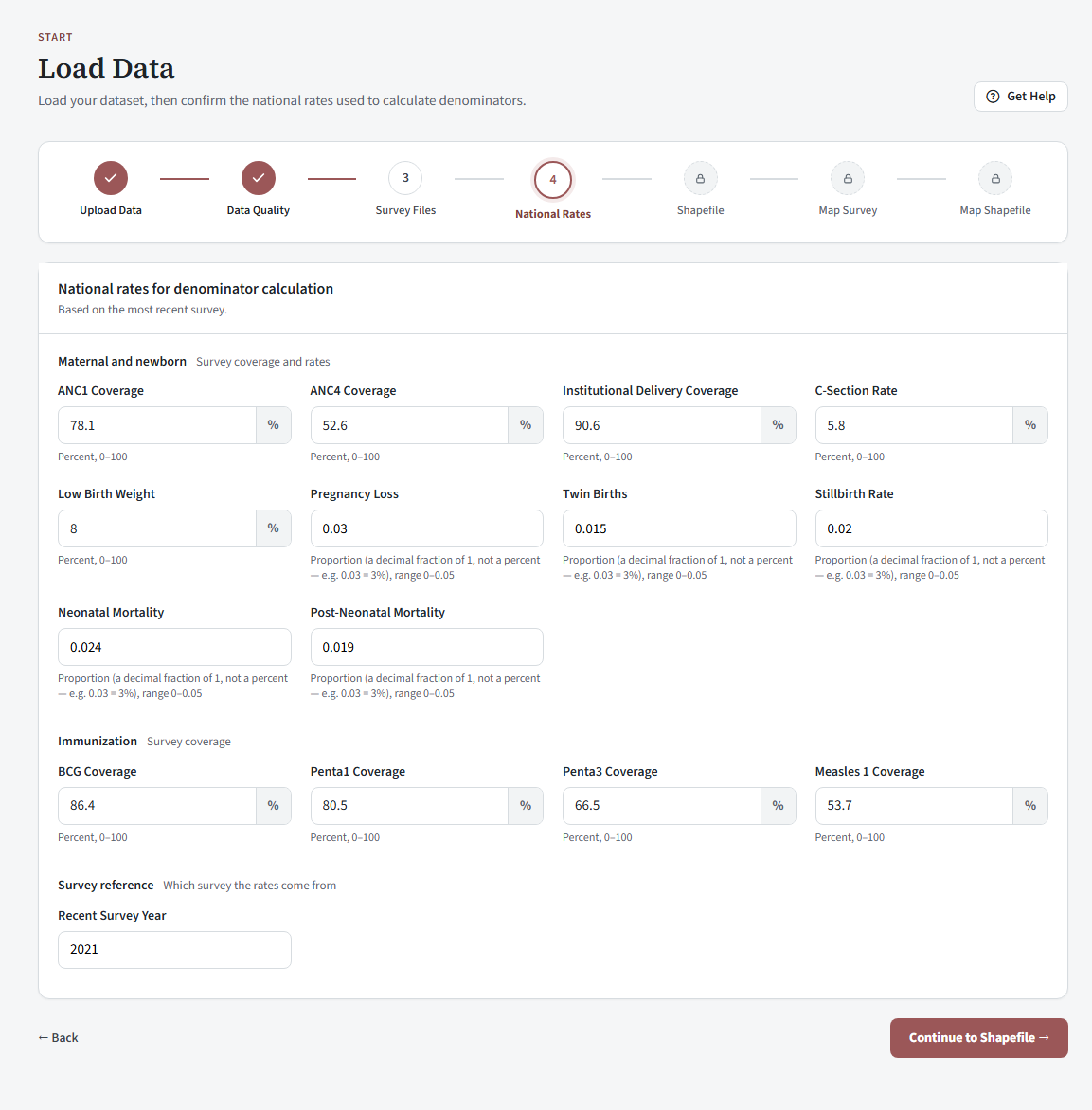
- Maternal and newborn: ANC1 Coverage, ANC4 Coverage, Institutional Delivery Coverage, C-Section Rate and Low Birth Weight (percent, 0–100), then Pregnancy Loss, Twin Births, Stillbirth Rate, Neonatal Mortality and Post-Neonatal Mortality (proportions: 0.03 means 3%).
- Immunization: BCG, Penta1, Penta3 and Measles 1 Coverage (percent).
- Survey reference: Recent Survey Year, and Survey Data Start Year once a national survey file is loaded.
If you uploaded a national survey file, the values are filled in for you and a box says Pre-filled from your survey. Check them all the same. What each value means and where to find it: Analysis setup > National survey parameters.
Shapefile (optional)
The app draws its maps with a built-in shapefileShapefile A set of map files (
.shp,.dbf,.shx,.prj) holding the boundaries of a country's regions, used to draw maps. A standard one is built into the app for each country. for the country, and the step says Using the built-in shapefile. To use your own map, drop the.shp,.dbf,.shxand.prjfiles in Upload a custom shapefile, choose the column that holds the region names (Which column holds the region (admin-1) names?) and press Use this shapefile.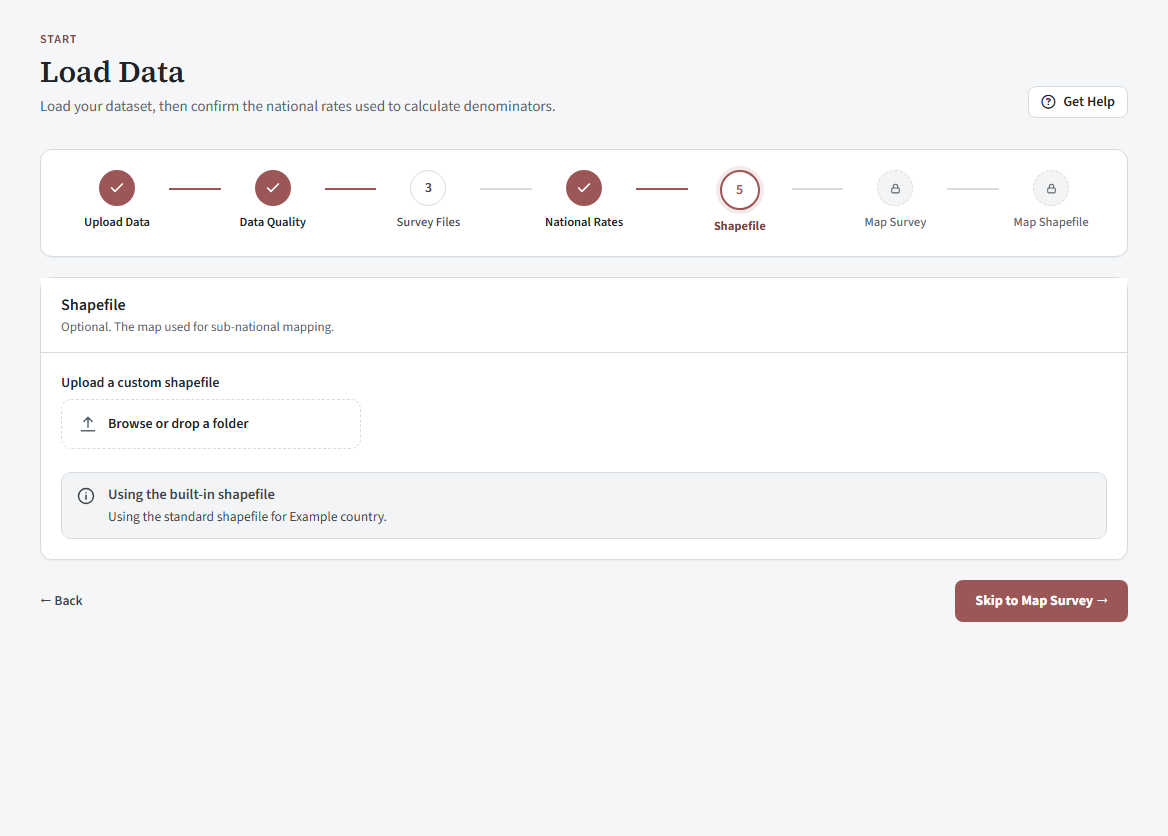
Map Survey and Map Shapefile
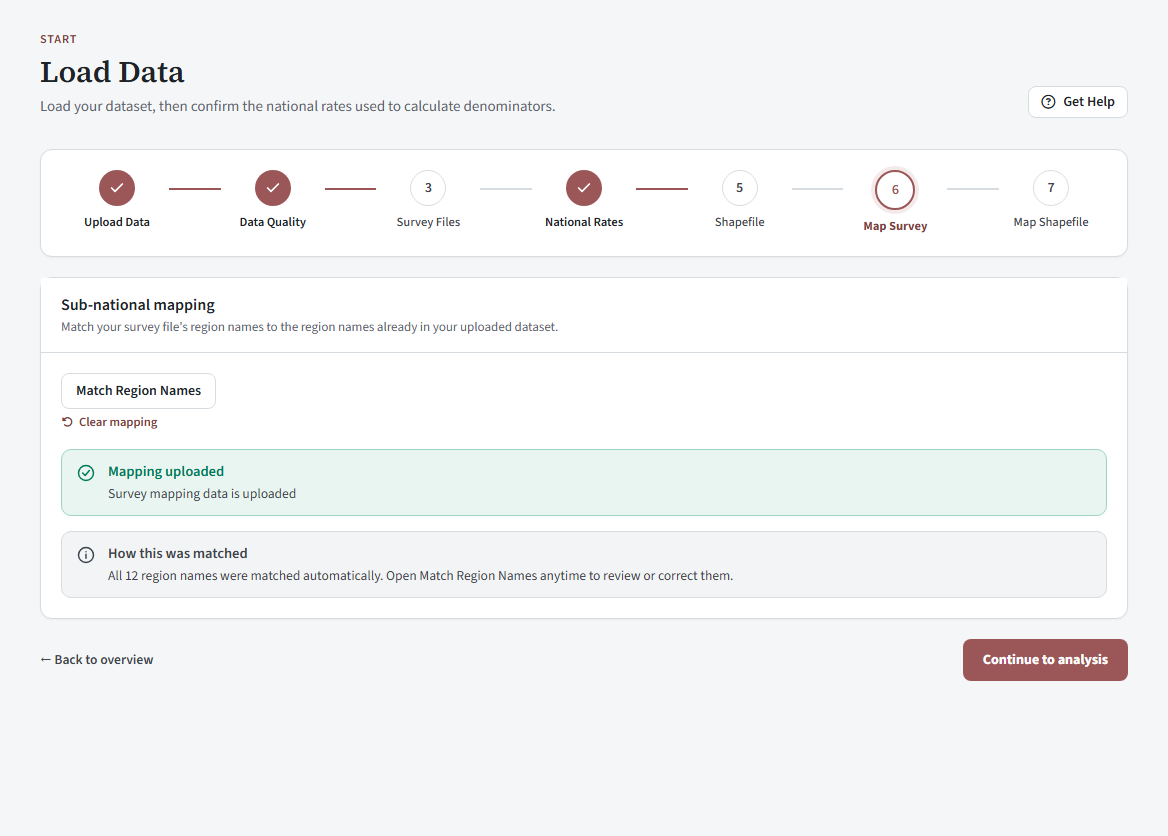
These two steps match the region names of the survey files (Map Survey) and of the map (Map Shapefile) to the Admin 1Admin 1 The first level below the national level, such as a region, province or department. Districts (Admin 2) are the level below it. names in your data. Press Match Region Names. The app matches the names it can and tags each match with the reason (Case differs, Accent differs, Approximate spelling match). Choose a name for any region still on Select…, then press Save Mapping.
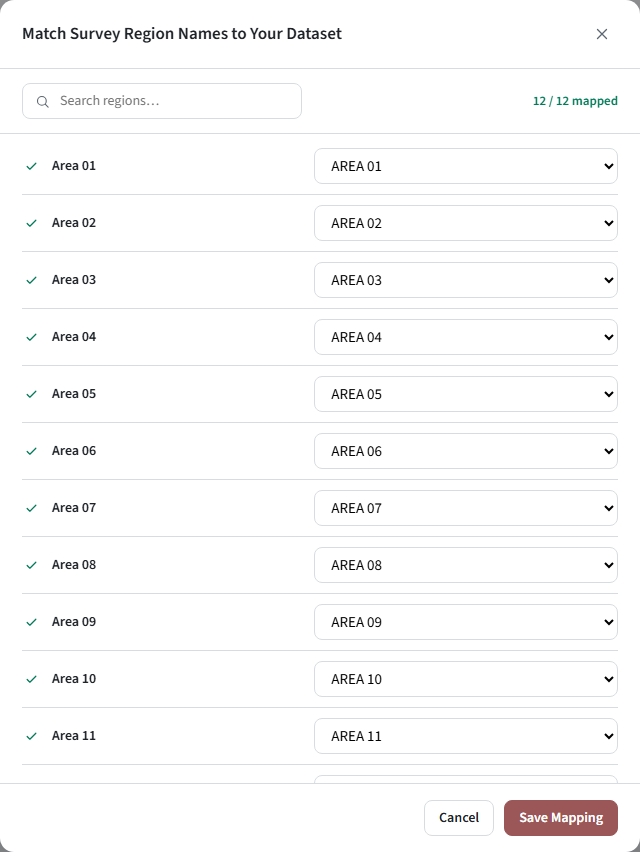
Save once even if nothing needs correcting: until you do, the step shows Review needed and you cannot continue. After saving, a box says how the names were matched. Clear mapping starts again.
Finish Loading Data
On the last step the button reads Finish Loading Data. The app merges the data, saves the dataset (see Accepted files) and shows Ready for analysis with Your dataset has been saved and is ready for analysis. Press Continue to analysis.
The steps are the same. The mapping button reads Map Survey Data.
Method: Analysis setup.
Troubleshooting
| Message | When you see it | What to do |
|---|---|---|
| Upload failed: Unsupported file format. | The file is not .xls, .xlsx, .dta or .rds. | Export the data again as an Excel workbook. |
| Upload failed: The file provided does not exist | The file was moved or deleted after you picked it. | Open the app again and pick the file where it is now. |
| Upload failed: missing sheet(s) and the sheet names | The workbook lacks a required sheet. | Add the sheets listed, with their exact names (HMIS data). |
| Upload failed: Key Columns … missing in … | A sheet lacks a column the app joins on, such as the district, year or month. | Add the column to that sheet and load the workbook again. |
| Upload failed: Sheet … is empty. | A required sheet has no rows. | Fill the sheet, or export the workbook again. |
| Upload failed: This dataset was built for the 'vaccine' indicator group, but this app is for 'rmncah'. (or the other way round) | You opened a dataset saved by the other app. | Open it in the app that saved it, or load the original workbook. |
| Some checks found issues that need fixing before you can continue | A blocking check failed on the Data Quality step. Its row says what is wrong, for example The country name "…" in Admin_data is not recognized. or District(s) present in the data but missing from Admin_data: … | Correct the workbook and load it again. |
| Complete the earlier steps first | You clicked a locked step in the rail. | Finish, or skip, the current step first. |
| Required fields remaining | A National Rates field is still empty, or a mapping is not saved. | Fill in every field, or save the mapping. |
| Upload failed: … under a survey file or reference data box | That .dta file could not be read. | Check that it is the right file for that box. |
| Some survey region names don't match your dataset (or Some shapefile region names don't match your dataset) | Region names in the survey files or the map differ from your data. | Match them in Map Survey or Map Shapefile. |
| Review needed | The region matches have not been saved yet. | Press Match Region Names, then Save Mapping. |
| Load and finish a dataset first to unlock this page. | You opened another page before finishing Load Data. | Finish the wizard. |
The detail after Upload failed: and in a failed check comes from the file check itself and is in English.
Common pitfalls
- Typing percentages as proportions, or the other way round, in National Rates: coverage fields take 0–100, rates take proportions such as 0.03.
- Editing the workbook and opening it again: the app opens the saved copy, not your changes. Delete the
_rmncah.rds(or_vaccine.rds) copy first. - Not saving the mapping: Map Survey and Map Shapefile need one save even when every name already matches.
Pitfalls in preparing the data: Analysis setup > Common pitfalls.
Next: Data quality.