
Data Extractor
Overview of the Data Extractor, which reads routine data from DHIS2 through your DataSuite sign-in, maps it to indicators and saves it as the workbook the RMNCAH and Vaxx apps load.
Get your DHIS2 data into a workbook
Say which DHIS2DHIS2 District Health Information Software 2, the software most countries use as their health management information system (HMIS); health facilities' monthly reports are entered in it, and the facility data workbook is exported from it. data make up each indicator (a mapping), choose the periods and the level, and download. The workbook made with a Countdown mapping is the file the RMNCAH and Vaxx apps load.
Pages
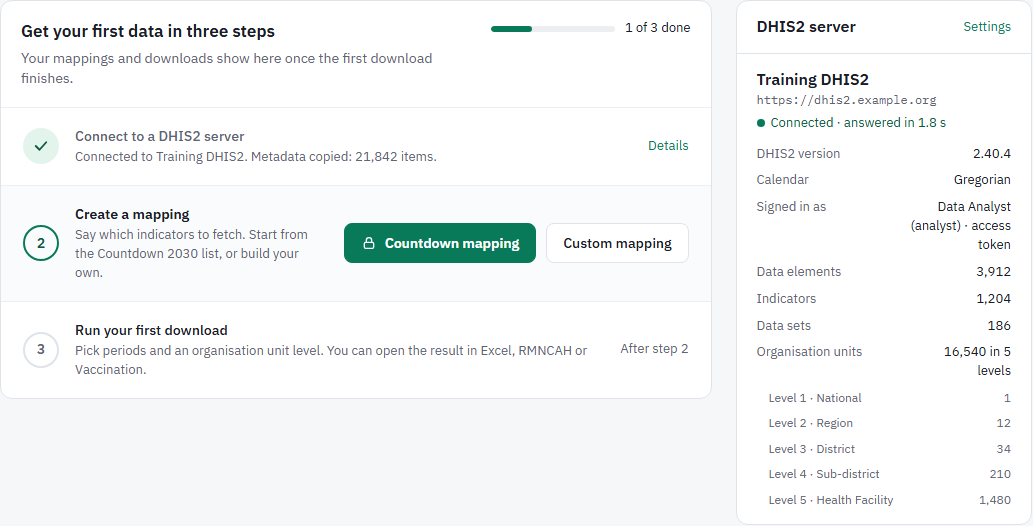
Sign in to DHIS2 and let the extractor copy the metadata.
Match each indicator to the DHIS2 data behind it.
Choose periods and level, follow the download, open the result.
Before you start: have a DHIS2 account on your country's server. Open the extractor from the Welcome page with Open Data Extractor (see First steps). The extractor is the first step of the Countdown analysis: its workbook is what the RMNCAH and Vaxx apps open.
The extractor only reads from DHIS2, and only what your DHIS2 account may see. It cannot change or delete anything on the server, and it never sees your password or token: you sign in in DataSuite, which keeps them encrypted.
How it works
flowchart TD
  A["Sign in to DHIS2 in DataSuite"] --> B["Choose a connection"]
  B --> C["Metadata copied"]
  C --> D["Create a mapping"]
  D --> E["New download"]
  E --> F["Downloads: in progress"]
  F --> G["Open in RMNCAH or Vaccination"]:::done
  F --> H["Open in Excel or JSON"]:::done
  F -- "failed" --> R["Retry"]:::warn
  R --> F
- One connection at a time. Each DHIS2 server you signed in to in DataSuite is a connection, with its own mappings, downloads and settings.
- A copy of the metadata. DataSuite keeps a copy of the server's data elements, indicators, data sets and organisation units, so searching while you map is instant.
- Downloads in small requests. A download is split into many small requests: more at once while the server keeps up, fewer when it struggles. You can pause and resume it, and retry it if it fails.
The workbook made with a Countdown mapping has the sheets the apps read: population, reporting completeness, services and health system data. What that data must contain: Analysis setup and the Indicator definitions.
The extractor window
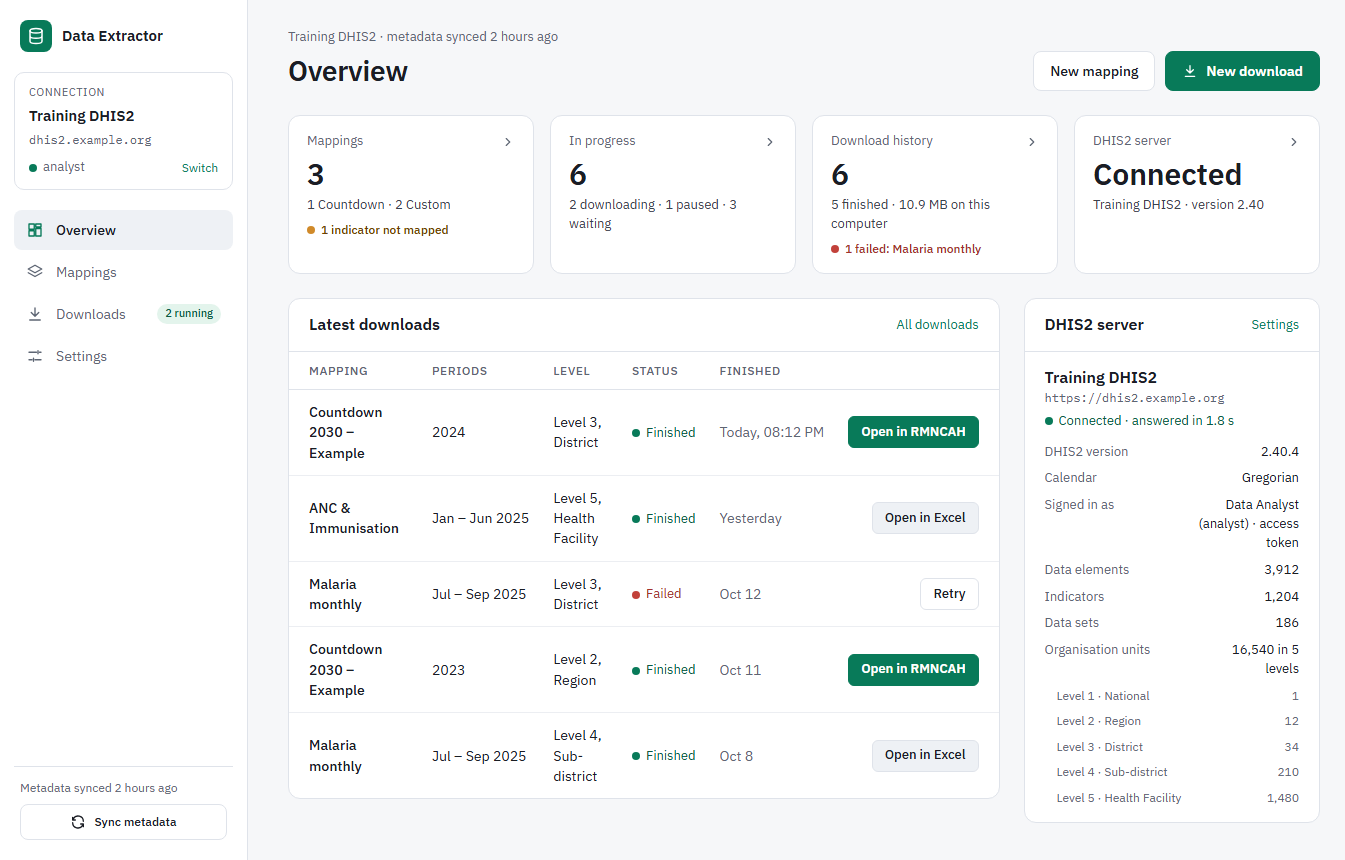
The sidebar shows the connection you are using (Switch chooses another), the four pages and, at the bottom, when the metadata was last copied, with Sync metadata to copy it again.
| Page | What for |
|---|---|
| Overview | What needs attention, the latest downloads and the DHIS2 server. On a new connection: the three steps to a first download |
| Mappings | Create, edit, share and import mappings (Mapping indicators) |
| Downloads | The downloads in progress and the history of finished and failed ones (Downloading data) |
| Settings | The connection, the calendar, how downloads run, where files are saved, and when the metadata is refreshed |
Common pitfalls
- The wrong server. Sign in to your country's production DHIS2 server, not a training or test copy, unless that is the one you mean to analyse.
- Data you cannot see in DHIS2. Access is set in DHIS2: if your account cannot see a data element or an area, the extractor cannot either. Ask your DHIS2 administrator.
- A huge first download. Try a new mapping on a short range first (for example Last 12 months at a high level), check the workbook, then download the full range.
- A Custom mapping for the Countdown apps. Only a download made with a Countdown mapping opens in the RMNCAH and Vaccination apps.
Next: DHIS2 login.