
DHIS2 login
How to sign in to your DHIS2 server in DataSuite, choose that connection in the Data Extractor and let it copy the server's metadata.
The extractor reads DHIS2 through a connection: a DHIS2 server you signed in to in DataSuite. You sign in once, in DataSuite's own dialog, and then choose that connection in the extractor. This is the first step, before you create a mapping; after it, the extractor has a copy of the server's metadata to map with.
Before you start: have the address of your DHIS2 server and your DHIS2 username and password, or a personal access token.
Signing in
flowchart TD
  A["Open Data Extractor"] --> B{"Server in the list?"}
  B -- "no" --> C["Sign in to a server..."]
  C --> D["Sign in to DHIS2: Server, Username, Password or token"]
  D --> E["Connect"]
  B -- "yes" --> E
  B -- "Asks first" --> F["Connect... then Allow..."]
  F --> E
  B -- "sign-in no longer accepted" --> G["Sign in again"]:::warn
  G --> D
E --> H["Overview, metadata copied"]:::doneOpen the extractor
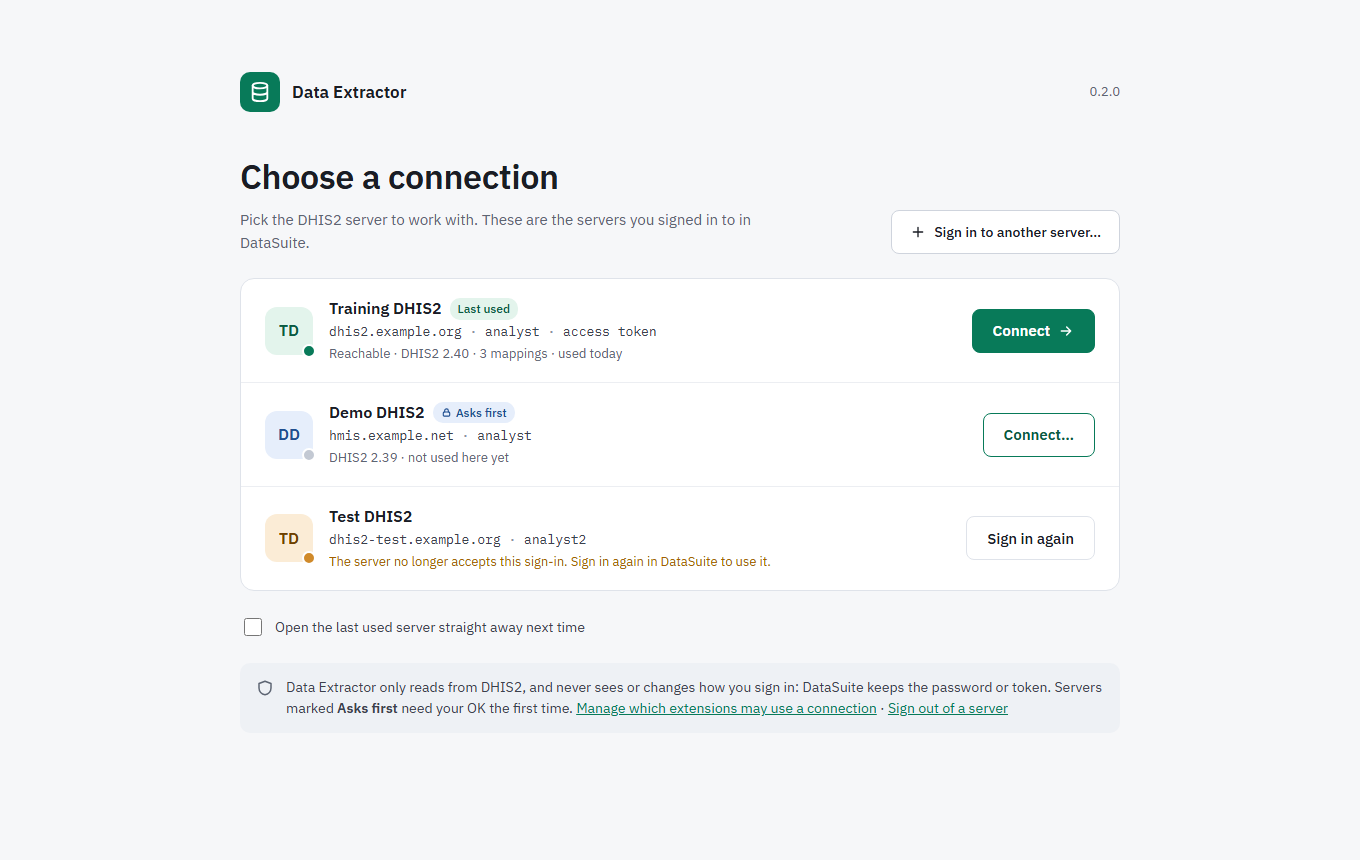
Click Open Data Extractor on the Welcome page (see First steps). It opens on Choose a connection, the list of the DHIS2 servers you signed in to in DataSuite. The first time, the extractor also brings over the mappings and downloads of the extractor that was built into earlier versions of DataSuite.
Sign in to the server
If your server is not in the list, click Sign in to a server… (or Sign in to another server…). DataSuite's Sign in to DHIS2 dialog opens:
- Server: the full address of the server, starting with
https://, for examplehttps://dhis2.example.org. Known servers are suggested as you type. - Username: your DHIS2 username. Leave it empty if you use a personal access token.
- Password or personal access token: a personal access token is recommended (DHIS2 2.39 or later: Profile > Edit profile > Personal access tokens). It can be limited, can expire and can be revoked.
Click Sign In. DataSuite keeps the password or token encrypted; the extractor never sees it.
- Server: the full address of the server, starting with
Choose the connection
Each server shows whether it answers, its DHIS2 version, its mappings and when you last used it. Click Connect.
- Asks first: the extractor has not used this connection yet. Click Connect…, read what allowing it means (it reads data and metadata with your account's access, and can't change anything), then Allow… and confirm in DataSuite.
- The server no longer accepts this sign-in: the password changed or the token expired. Click Sign in again.
Tick Open the last used server straight away next time to skip this list.
Let it copy the metadata
After you connect, DataSuite copies the server's metadata: data elements, indicators, data sets, category option combinations and organisation units. The Overview then shows how many items were copied, and the bottom of the sidebar shows when (Metadata synced …). The copy makes searching while you map instant, and it holds only what your account may see.
If you cannot see a data set, a data element or an area in DHIS2, the extractor cannot see it either: it does not bypass DHIS2 permissions. Ask your DHIS2 administrator for access.
Keeping the metadata up to date
By default the copy is refreshed once a day. If something was added to DHIS2 since, click Sync metadata at the bottom of the sidebar, or Settings > Metadata > Refresh now. Refresh the copy in the same place sets when it refreshes by itself: Each time the extractor opens, Once a day, Once a week or Only when I ask.
Changing or leaving a connection
Only DataSuite changes a connection. Settings > Connection shows the server, the address, who is signed in and how, with Test connection to check that the server answers. To use another address, user or token, sign in again in DataSuite (Sign in to a server…): that makes a new connection, with its own mappings and downloads. To carry a mapping over, export it (Mappings > ⋯ > Export to share) and import it in the new connection. Sign out… and Extension access… are there too. Switch, in the sidebar, goes back to the list of connections.
Common pitfalls
- The address of a page, not of the server. Type the server's address (
https://dhis2.example.org), not a link to a dashboard or app inside it. The message The server's address starts with https:// means the address is not complete. - Invalid username or password. Check them by signing in to DHIS2 in your browser, or use a personal access token.
- Unable to reach the DHIS2 server. Check your internet connection and the address; the server may also be down.
- An item missing after signing in. Click Sync metadata; if it is still missing, your account may not have access to it. More in the FAQs.
Next: Mapping indicators.