
Language and themes
How to use DataSuite in English, French or Portuguese with its language packs, how to choose a light, dark or high contrast colour theme, and where DataSuite saves both choices.
DataSuite comes in three languages and six colour themes. Both are yours to change at any time. Your choices are kept for the next start.
Change the display language
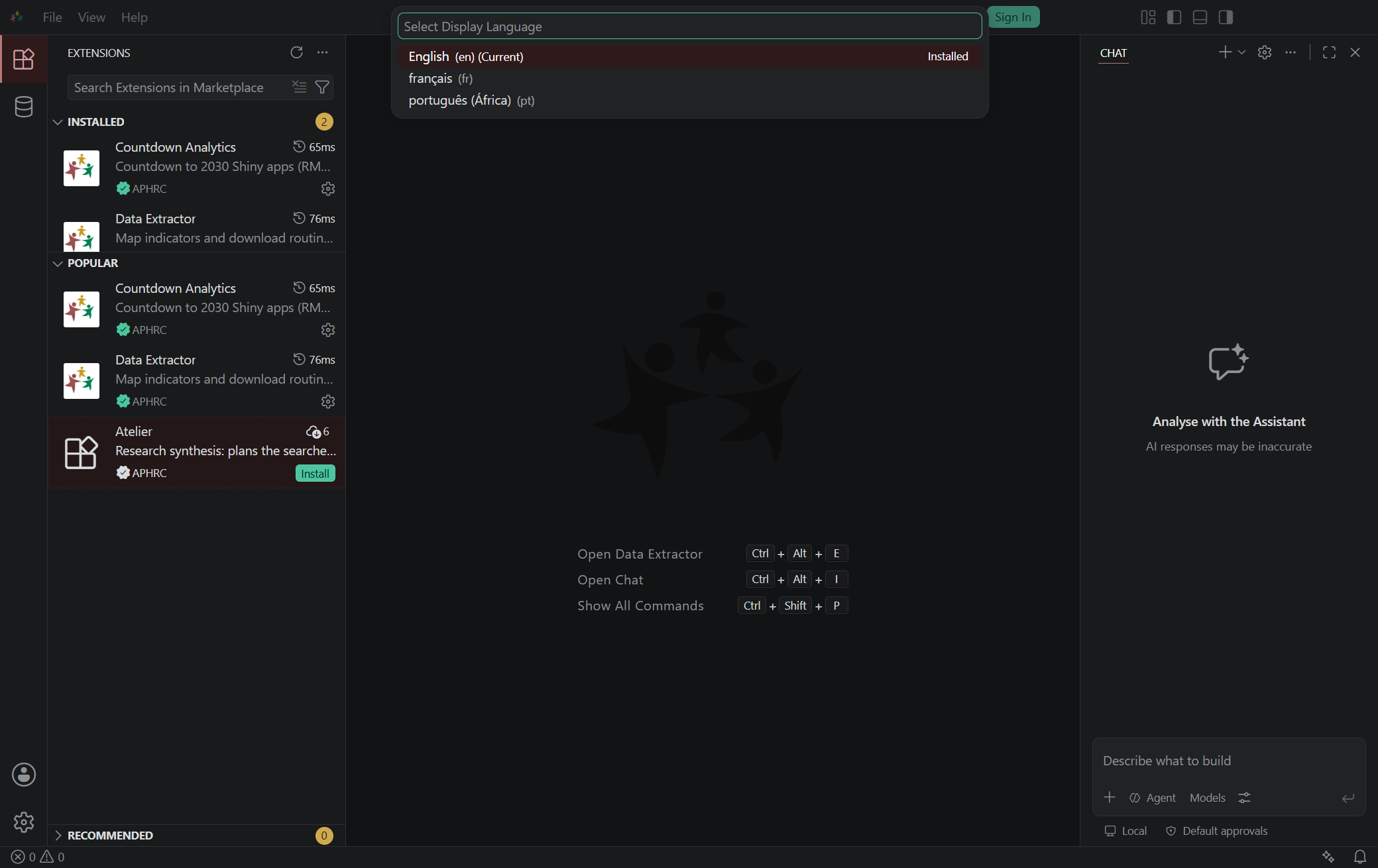
DataSuite is in English, French (français) and Portuguese (português (África), as written in Africa). The French and Portuguese language packs come with DataSuite, so you do not need the internet to switch.
At first start, DataSuite uses your computer's language if it is French or Portuguese. Otherwise it starts in English.
flowchart LR
  A["File > Preferences > Display Language"] --> B["Select Display Language: pick a language"]
  B --> C["Restart DataSuite to switch? Click Restart"]
  C --> D["DataSuite opens in the new language"]:::done
Open the language list
Choose File > Preferences > Display Language. Or press
Ctrl+Shift+Pand run Configure Display Language.Pick a language
The list Select Display Language shows the installed languages: English (en), français (fr) and português (África) (pt). The current one is marked (Current).
Restart
DataSuite asks Restart Countdown DataSuite to switch to …? Click Restart. DataSuite closes and opens again in the new language.
The menus, the Welcome page, the settings and the apps follow the display language. A few new labels may still be in English until the next language pack.
To go back to your computer's language, run Clear Display Language Preference from the Command Palette and restart.
Change the colour theme
A colour theme sets the colours of the whole window. DataSuite starts with DataSuite Analysis Dark.
flowchart LR
  A["File > Preferences > Color Theme (Ctrl+K Ctrl+T)"] --> B["Move through the list: each theme shows at once"]
  B --> C["Press Enter to keep it"]:::done
  B --> D["Press Esc to go back"]
Open the theme list
Choose File > Preferences > Color Theme, or Manage > Themes > Color Theme, or press
Ctrl+K Ctrl+T.Try the themes
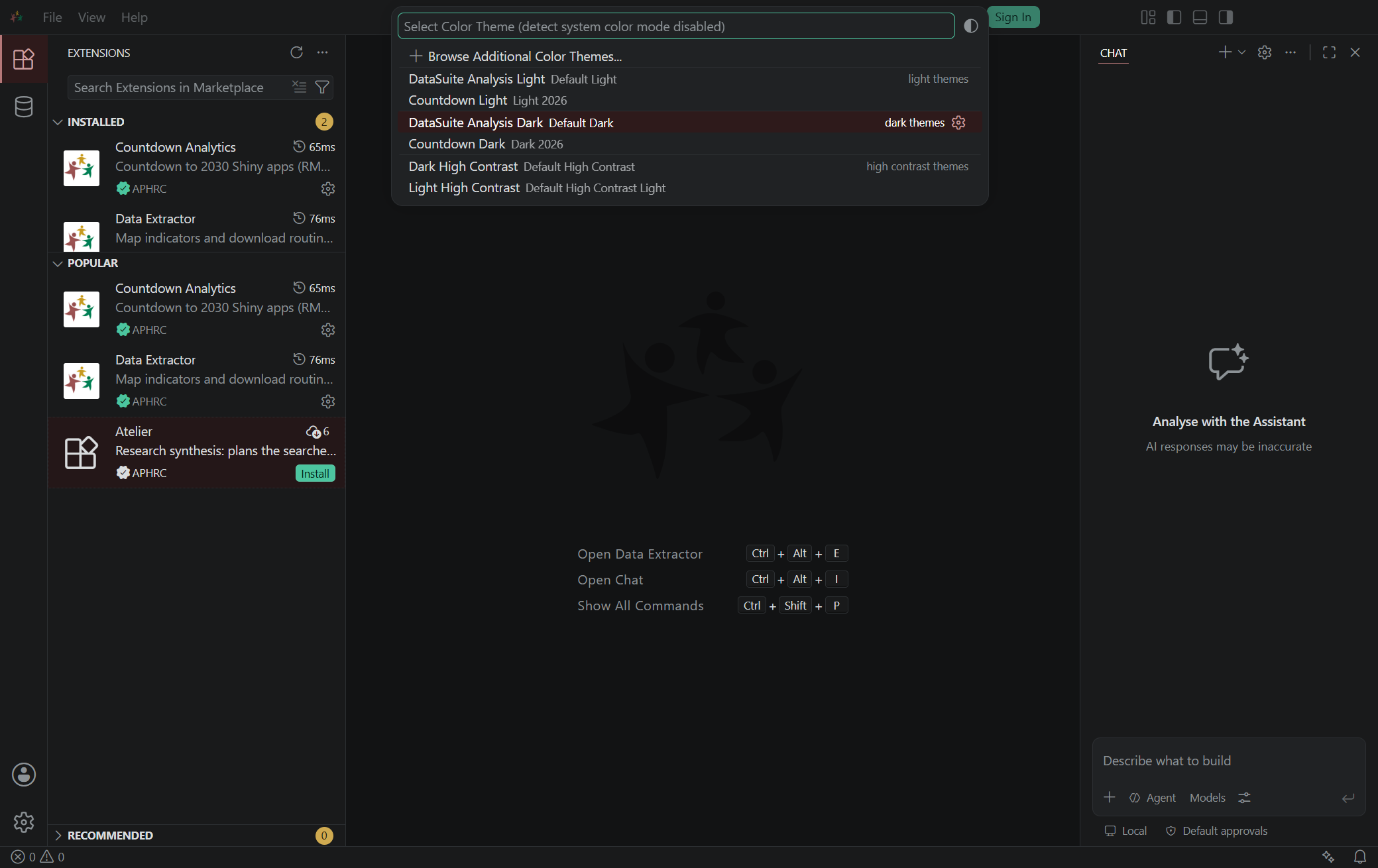
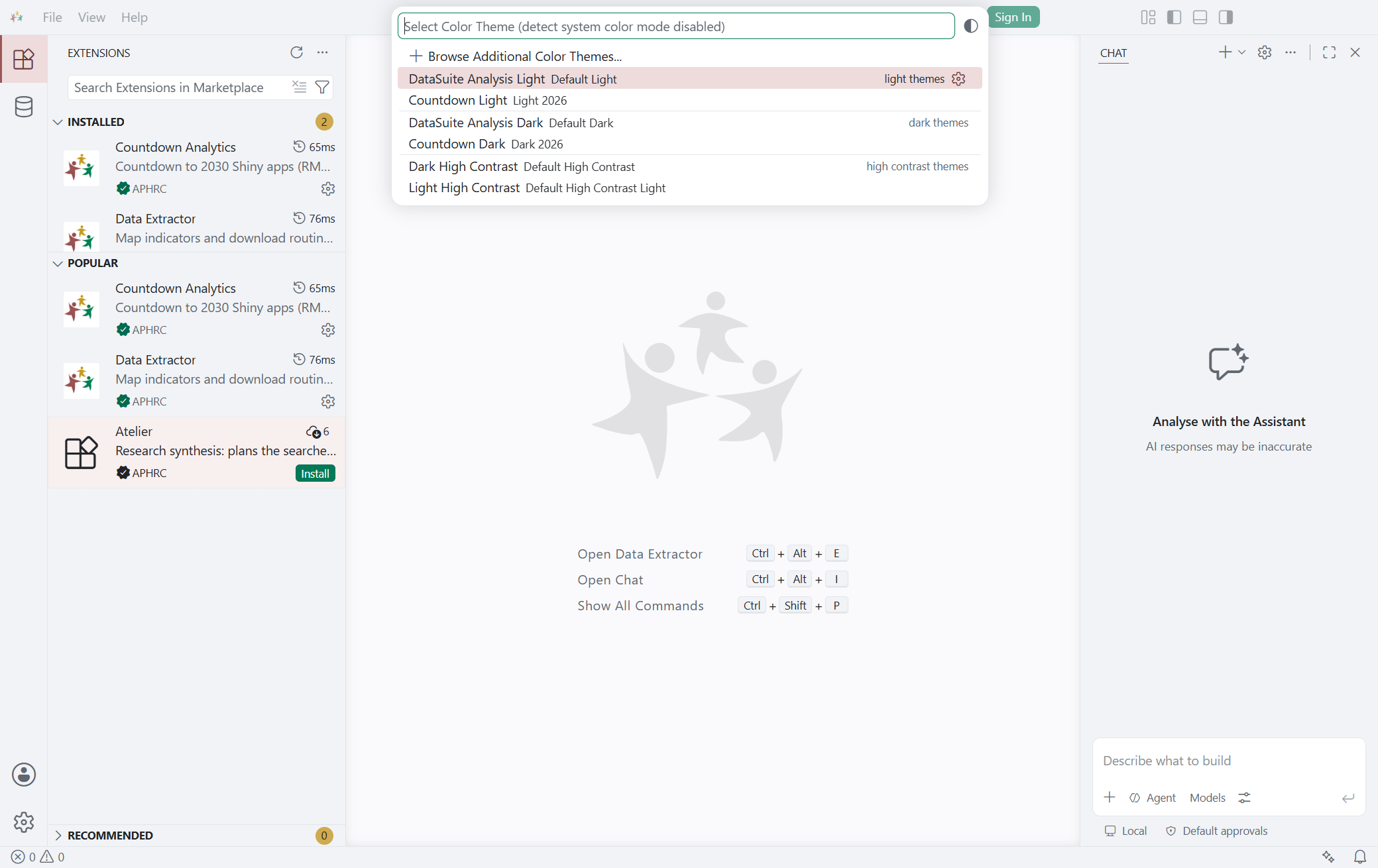
Move up and down the list with the arrow keys. DataSuite shows each theme as you move.
Keep it
Press
Enterto keep the theme. PressEscto go back to the theme you had.
The themes that come with DataSuite:
| Theme | Kind | Notes |
|---|---|---|
| DataSuite Analysis Light | Light | The default light theme. |
| Countdown Light | Light | The Countdown colours on a light background. |
| DataSuite Analysis Dark | Dark | The default theme. |
| Countdown Dark | Dark | The Countdown colours on a dark background. |
| Dark High Contrast | High contrast | Strong contrast for low vision or bright rooms. |
| Light High Contrast | High contrast | The same, on white. |
The Get started with DataSuite walkthrough on the Welcome page also has a Choose your theme step, with Browse Color Themes.
More themes
Browse Additional Color Themes... at the top of the list searches the DataSuite extension registry for themes. See Extensions.
DataSuite has no file icon theme of its own. Manage > Themes > File Icon Theme lists any you install.
Follow your computer's light or dark mode
The half-filled circle at the right of the theme list turns on detect system color mode. DataSuite then uses your light theme when Windows is light and your dark theme when it is dark. The settings Preferred Light Color Theme (workbench.preferredLightColorTheme) and Preferred Dark Color Theme (workbench.preferredDarkColorTheme) choose which.
Where your choices are saved
| Choice | Saved in | Setting |
|---|---|---|
| Display language | %USERPROFILE%\.datasuite\argv.json (Linux: ~/.datasuite/argv.json) | "locale": "fr" |
| Colour theme | %APPDATA%\DataSuite\User\settings.json (Linux: ~/.config/DataSuite/User/settings.json) | "workbench.colorTheme" |
In portable mode, both are in the data folder next to DataSuite. See also Where your settings are saved.