
Download and install for Windows
Step-by-step instructions to download and install CD2030 DataSuite on Windows, with the installer or the ZIP file, from licence agreement to finish.
Before you install, check the requirements. DataSuite does not include R, which its apps need: install R 4.1 or newer too.
To download and install CD2030 DataSuite on Windows, follow these steps:
Download and install DataSuite
- Select the installer option that is appropriate for your use.
Once the download is complete, open the folder and run the installer
Install DataSuite on Windows
Use the Windows installer
Download the DataSuite installer for Windows
Once it is downloaded, run the installer (
DataSuiteUserSetup-{version}.exe)If prompted by User Account Control (UAC), click Yes to allow the app to make changes to your device.
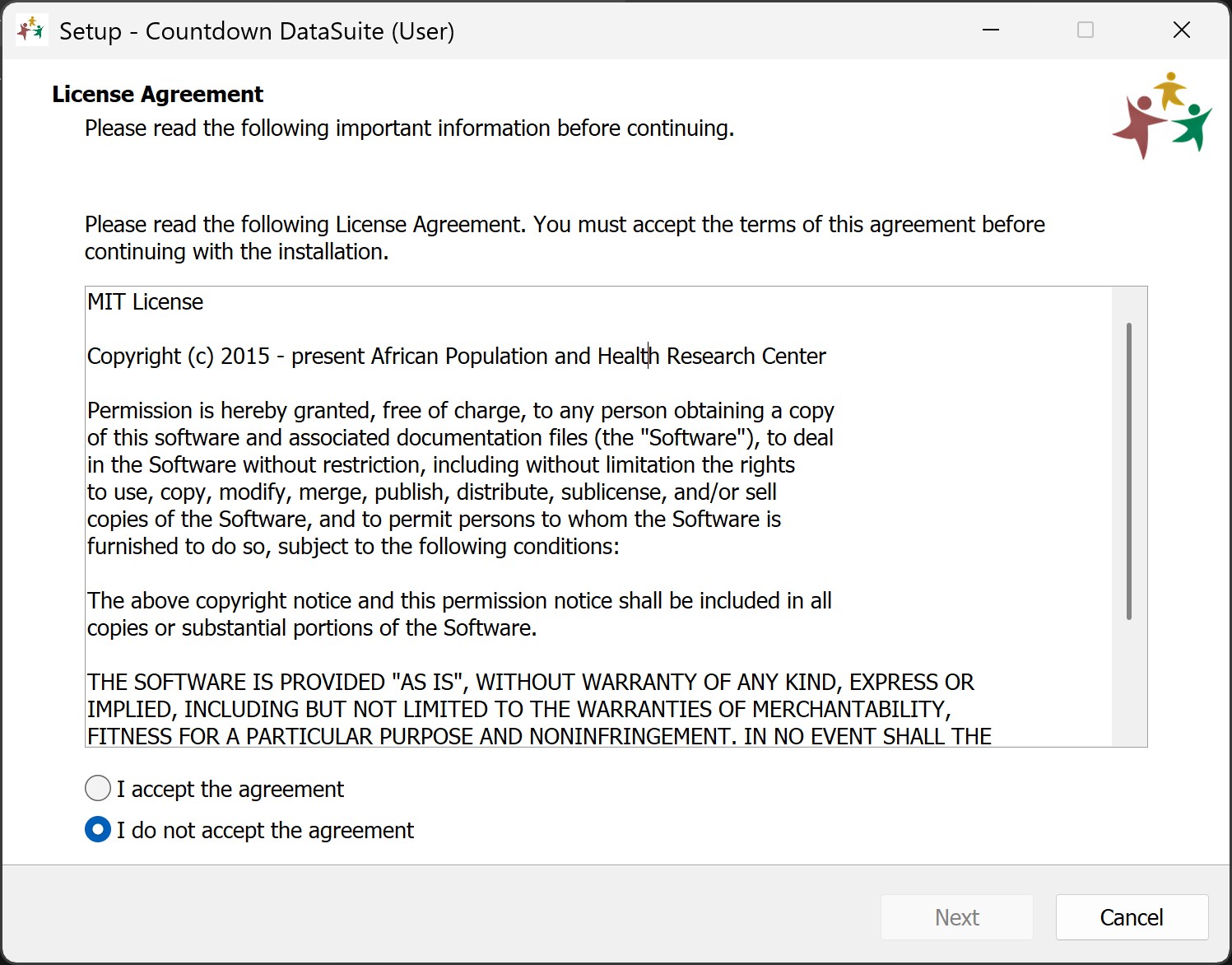
Accept the license agreement
Read through the End-User License Agreement (EULA). Select I accept the agreement and click Next.
Choose the installation location
Choose the destination folder where you want DataSuite to be installed. By default, DataSuite is installed under
C:\Users\{Username}\AppData\Local\Programs\DataSuite. Click Next to proceed.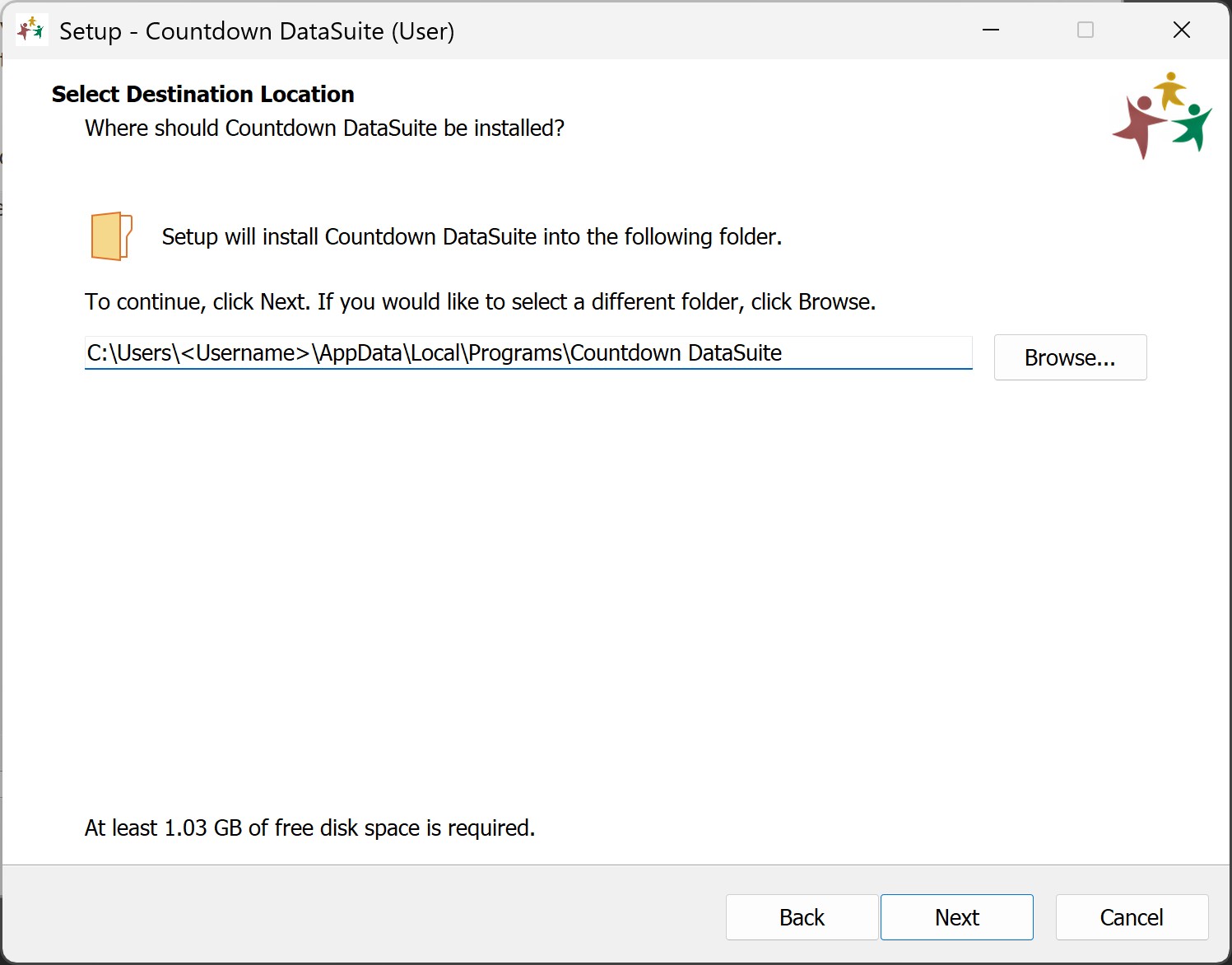
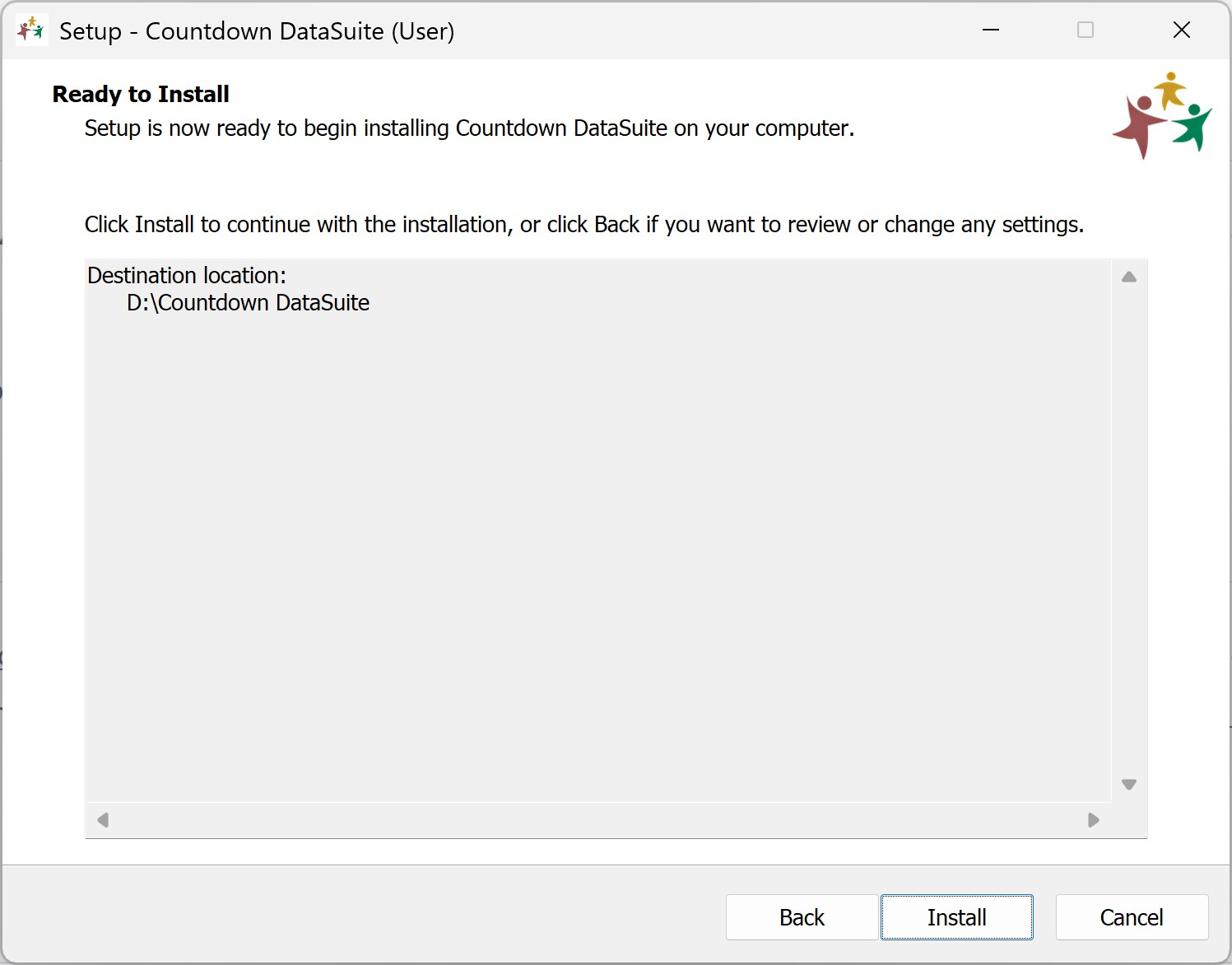
Install and finish
Click Install to begin the process. Once the progress bar completes, click Finish to exit the setup wizard and launch DataSuite.
Use the ZIP file
- Download the DataSuite ZIP archive.
- Extract the ZIP archive, and run DataSuite from there.