
Extensions
What DataSuite extensions are and which ones exist, and how to find, install, update, turn off and remove them, from DataSuite's own registry or from a file when there is no internet.
Extensions add apps and tools to DataSuite. The RMNCAH, Vaxx and Pooled apps and the Data Extractor are extensions. DataSuite installs them for you and keeps them up to date. You can add more from the DataSuite registry.
Where extensions come from
DataSuite gets its extensions from its own registry at datasuite.damurka.com/registry. It does not use the Visual Studio Marketplace. Extensions from the DataSuite team are published by APHRC and carry a verified mark.
You can browse the registry in a web browser too. Its categories include Shiny Apps, Python Apps and Data Extractors.
The DataSuite extensions
| Extension | Comes with DataSuite | What it adds |
|---|---|---|
| Countdown Analytics | Yes, updates itself | The RMNCAH, Vaxx and Pooled apps; the Countdown icon with the Datasets view; what the assistant knows about the Countdown method and your dataset. See Apps overview. |
| Data Extractor | Yes, updates itself | Open Data Extractor: map indicators and download routine data from DHIS2DHIS2 District Health Information Software 2, the software most countries use as their health management information system (HMIS); health facilities' monthly reports are entered in it, and the facility data workbook is exported from it. to Excel. See Data Extractor. |
| DataSuite Assistant | Yes, updates itself | The AI assistant in the chat. See AI assistant. |
| French and Portuguese language packs | Yes | DataSuite in French and Portuguese. See Language and themes. |
| Countdown Themes | Yes | The Countdown and DataSuite Analysis colour themes. |
| R, Python and Stata Language Basics | Yes | Colours and brackets in R, Python and Stata code and do-files. |
| Atelier | No, install it | Research synthesis: it searches PubMed, Europe PMC, OpenAlex and Semantic Scholar, ranks the papers and writes a cited summary with DataSuite's AI. |
The extensions that come with DataSuite cannot be uninstalled. You can turn them off.
Open the Extensions view
Click Extensions in the activity bar, or press Ctrl+Shift+X, or choose View > Extensions.
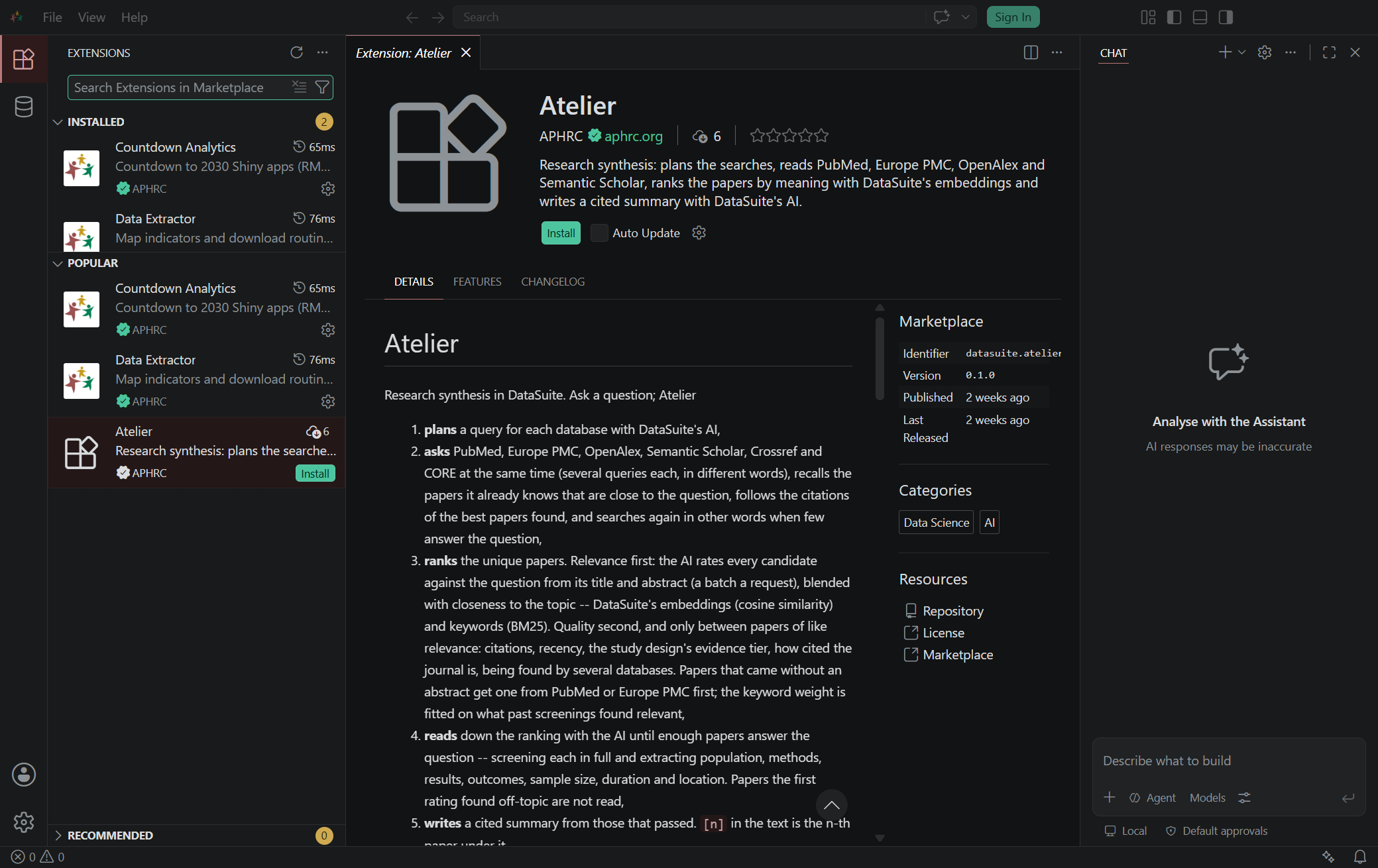
The view has three lists:
- Installed: the extensions you have, with Countdown Analytics and the Data Extractor.
- Popular: the most installed extensions in the registry.
- Recommended: extensions suggested for what you have open.
Click an extension to open its page: Details, Features and Changelog. The changelog says what each version changed.
Install an extension
flowchart LR
  A["Open Extensions (Ctrl+Shift+X)"] --> B["Type in Search Extensions in Marketplace"]
  B --> C["Click the extension"]
  C --> D["Click Install"]
  D --> E["It is listed under Installed"]:::done
Search
Type a name or a word in Search Extensions in Marketplace. The list shows what the registry has.
Install
Click Install on the extension, in the list or on its page. DataSuite downloads it and turns it on.
Use it
The extension now appears under Installed. An app extension adds its app to the File menu, and sometimes to Start Here on the Welcome page. If DataSuite asks to reload or restart, do so.
Only install extensions you trust. An extension can read your files and run programs.
Update extensions
DataSuite updates your extensions by itself. Countdown Analytics, the Data Extractor and the DataSuite Assistant update too, so app fixes do not wait for a new DataSuite version.
- To check now, open the ... menu at the top of the Extensions view and choose Check for Extension Updates.
- An extension with a new version shows an Update button. Click it.
- On an extension page, clear Auto Update to keep it at its version.
To update DataSuite itself, see Updates.
Turn an extension off or remove it
Click the gear on the extension in the list, or open its page.
- Disable turns it off and keeps it. Enable turns it on again.
- Disable (Workspace) turns it off only for the folder you have open.
- Uninstall removes it. The extensions that come with DataSuite have no Uninstall: disable them instead.
DataSuite may ask you to reload to finish.
Without internet
DataSuite works offline. The extensions that come with it are already installed, and so are the language packs. To add an extension on a computer without internet, bring it as a .vsix file.
flowchart TD
  A["Computer with internet: open datasuite.damurka.com/registry"] --> B["Find the extension"]
  B --> C["Download its .vsix file"]
  C --> D["Copy the file to the offline computer, for example on a USB stick"]
  D --> E["DataSuite: Extensions view > ... > Install from VSIX..."]
  E --> F["Pick the .vsix file and click Install"]
  F --> G["The extension is listed under Installed"]:::done
Download the file
On a computer with internet, open datasuite.damurka.com/registry. Find the extension and download its
.vsixfile.Install it
On the offline computer, open the Extensions view. Open the ... menu at the top and choose Install from VSIX.... Or run Extensions: Install from VSIX... from the Command Palette. Pick the file and click Install.
An extension installed this way does not update itself while you are offline. Install the newer .vsix the same way.
An app extension still needs R, and the R packages of its app. DataSuite installs those the first time the app opens, which needs the internet. See Requirements.
Where extensions are saved
Extensions you install are in %USERPROFILE%\.datasuite\extensions (Linux: ~/.datasuite/extensions). The extensions that come with DataSuite are in its install folder. In portable mode, extensions are in the data folder next to DataSuite.